Run Actors
You can run Actors manually in Apify Console, with the Apify API, programmatically from your own applications, or from AI agents. To run your first Apify Actor, we recommend trying one of the existing Actors from Apify Store. For details on building your own, see Actor development.
In all cases, you need an Apify account - sign up for free if you don't have one yet.
Run Actors manually in Apify Console
This tutorial covers a complete first run without any code, by choosing an Actor in Apify Store and running it.
1. Choose an Actor
To find an Actor in Apify Store:
- Sign in to Apify Console.
- Go to Apify Store.
- Use the search bar or browse by categories.
For this tutorial, let's choose Website Content Crawler.
2. Configure and run the Actor
Once you select the Actor, you will be taken to the Actor's detail page.
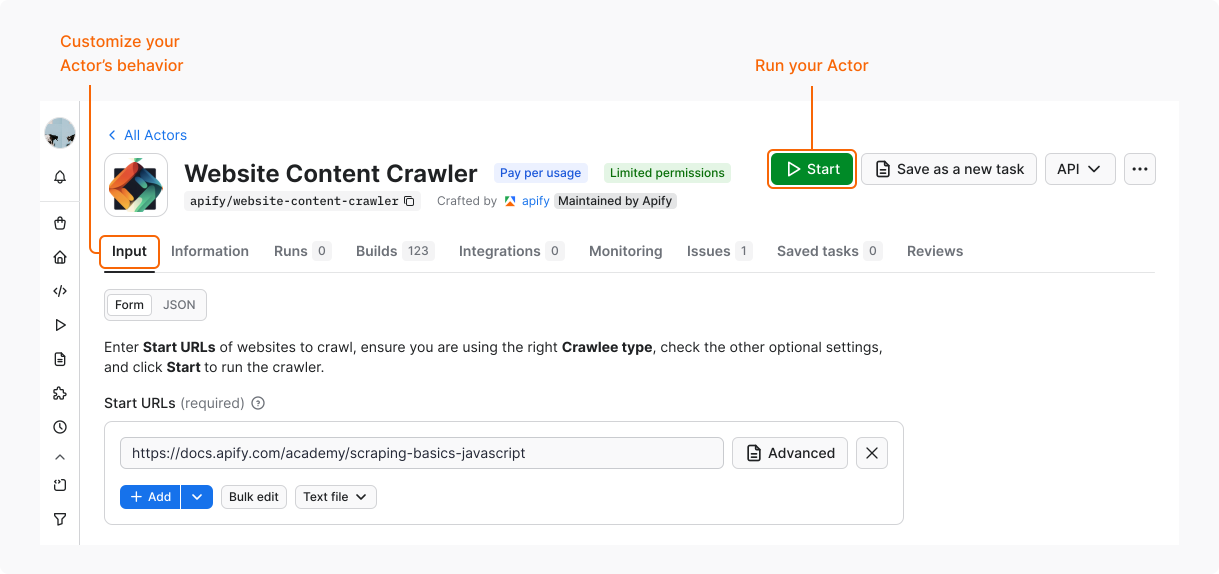
In the Input tab, you can customize the Actor's behavior. Website Content Crawler is pre-configured to run without extra input, so you don't need to change anything.
To run the Actor, click Start.
3. Wait for the results
The Actor might take a while to gather results and finish its run. While waiting, let's explore the remaining options:
- Check the tabs where you can find more information about the Actor run. For example, its logs or storage.
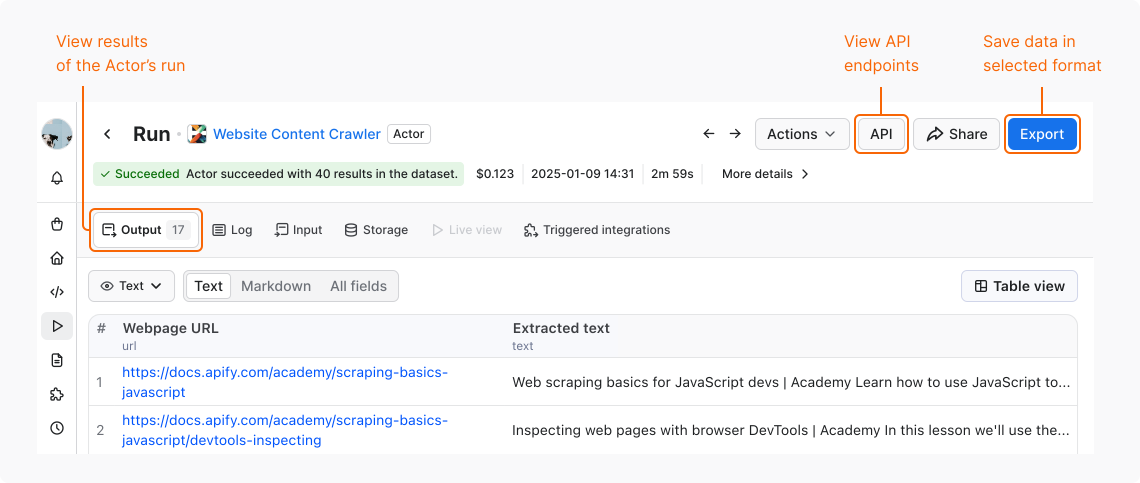
- Use the API button to view the related API endpoints.
4. Save the results
The results of the Actor run appear in the Output tab. To save the data, click Export. You can choose from multiple formats.
And that's it! You've run your first Actor!
Now you can go back to the Input tab and try again with different settings, run other Apify Actors, or build your own.
Run Actors with the Apify API
To invoke Actors with the Apify API, send an HTTP POST request to the Run Actor endpoint. For example:
https://api.apify.com/v2/actors/compass~crawler-google-places/runs?token=<YOUR_API_TOKEN>
An Actor's input and its content type can be passed as a payload of the POST request, and additional options can be specified using URL query parameters. To learn more, see Run an Actor and retrieve data via API.
Run Actors programmatically
You can also invoke Actors programmatically from your own applications or from other Actors.
To start an Actor from your own application, we recommend using Apify API client libraries for JavaScript or Python.
- JavaScript
- Python
import { ApifyClient } from 'apify-client';

const client = new ApifyClient({
    token: 'MY-API-TOKEN',
});

// Start the Google Maps Scraper Actor and wait for it to finish.
const actorRun = await client.actor('compass/crawler-google-places').call({
    queries: 'apify',
});
// Fetch scraped results from the Actor's dataset.
const { items } = await client.dataset(actorRun.defaultDatasetId).listItems();
console.dir(items);
from apify_client import ApifyClient


apify_client = ApifyClient('MY-API-TOKEN')

# Start the Google Maps Scraper Actor and wait for it to finish.
actor_run = apify_client.actor('compass/crawler-google-places').call(
    run_input={ 'queries': 'apify' }
)

# Fetch scraped results from the Actor's dataset.
dataset_items = apify_client.dataset(actor_run['defaultDatasetId']).list_items().items
print(dataset_items)
The newly started Actor runs under the account associated with the provided token, so all consumed resources are charged to this user account.
Internally, the call() function invokes the Run Actor API endpoint, waits for the Actor to finish, and reads its results from the default dataset using the Get dataset items API endpoint.
Run Actors from AI agents
AI agents can discover and run Actors on their own. Connect your agent to the platform through the Apify MCP server, call the Apify API directly, or add Apify Agent Skills for pre-built workflows. For a complete guide, see the agent quickstart.