Dataset
Dataset storage enables you to sequentially save and retrieve data. A unique dataset is automatically created and assigned to each Actor run when the first item is stored.
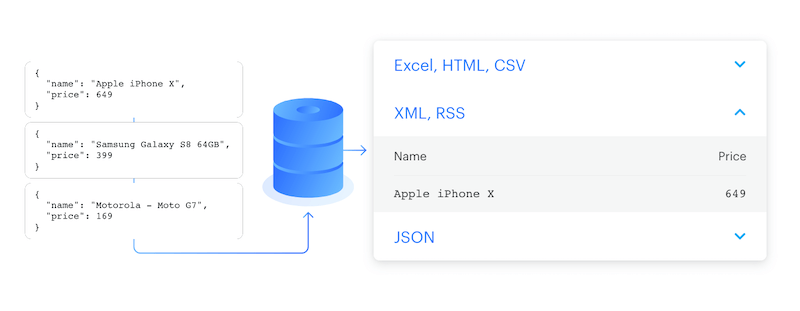
Typically, datasets hold results from web scraping, crawling, and data processing jobs. The data is displayed as a table, where each object forms a row and its attributes form columns. You can export the data in JSON, CSV, XML, Excel, HTML table, RSS, or JSONL formats.
Named datasets are retained indefinitely. Unnamed datasets expire after 7 days unless otherwise specified. Learn more
Dataset storage is append-only - data can only be added and cannot be modified or deleted once stored.
Dataset schema
Actors can define a dataset schema that describes the structure of each dataset item and controls how data appears in the Output tab. The schema has two components:
fields- JSON Schema describing each item's structure, enabling validation and providing metadata for AI agentsviews- Display configurations that control field ordering, formatting, and presentation in the Console
Dataset schemas are defined in the Actor's .actor folder and apply to the Actor's default dataset.
Basic usage
You can access your datasets in several ways:
- Apify Console - view and manage your datasets in a visual interface.
- Apify API - to access your datasets programmatically.
- Apify API client - to access your datasets from any Node.js/Python application.
- Apify SDKs - when building your own JavaScript/Python Actor.
Apify Console
In Apify Console, you can view your datasets in the Storage section under the Datasets tab.
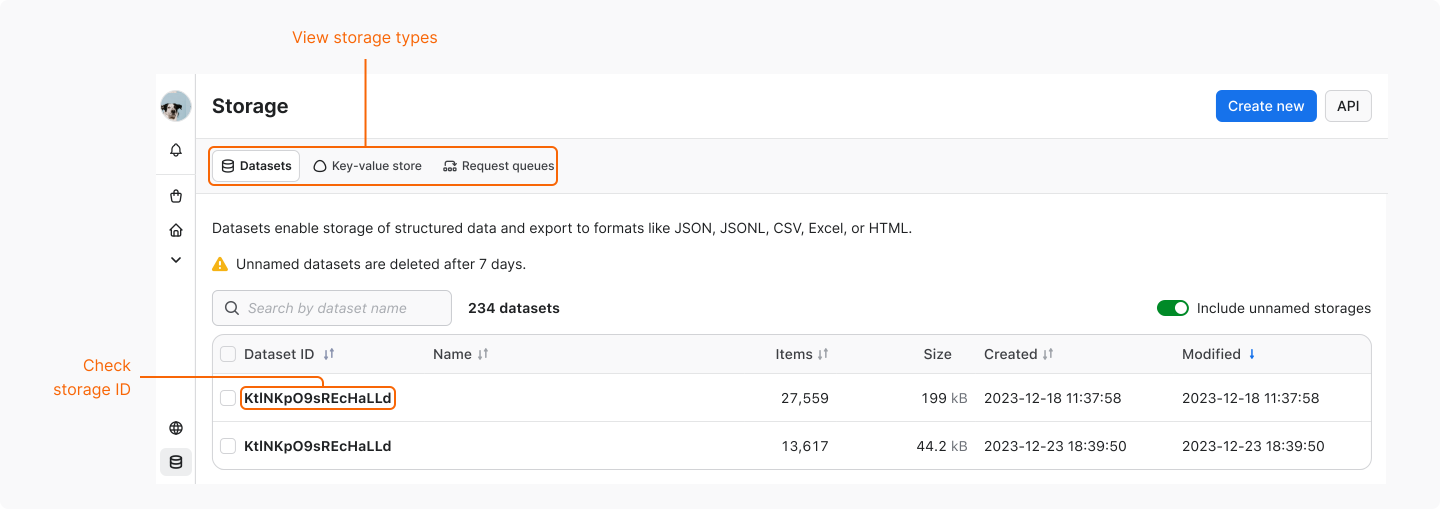
To view or download a dataset:
- Click on its Dataset ID to open the dataset detail page.
- Browse the data in Table or JSON view.
- Click Export to download the data in your preferred format.
To rename the dataset (which affects its retention period) or adjust its access rights, use the Actions menu. To view and test the dataset's API endpoints, select API.
Apify API
The Apify API gives you programmatic access to your datasets using HTTP requests.
If you are accessing your datasets using the username~store-name store ID format, you will need to use your secret API token. You can find the token (and your user ID) on the API & Integrations tab of Settings page of your Apify account.
When providing your API authentication token, we recommend using the request's Authorization header, rather than the URL. More info.
To retrieve a list of your datasets, send a GET request to the Get list of datasets endpoint.
https://api.apify.com/v2/datasets
To get information about a dataset such as its creation time and item count, send a GET request to the Get dataset endpoint.
https://api.apify.com/v2/datasets/{DATASET_ID}
To view a dataset's data, send a GET request to the Get dataset items Apify API endpoint.
https://api.apify.com/v2/datasets/{DATASET_ID}/items
Control the data export by appending a comma-separated list of fields to the fields query parameter. Likewise, you can also omit certain fields using the omit parameter.
omit takes precedenceIf you fill both omit and field parameters with the same value, then omit parameter will take precedence and the field is excluded from the results.
In addition, you can set the format in which you retrieve the data using the ?format= parameter. The available formats are json, jsonl, csv, html, xlsx, xml and rss. The default value is json.
To retrieve the hotel and cafe fields, you would send your GET request to the URL below.
https://api.apify.com/v2/datasets/{DATASET_ID}/items?format=json&fields=hotel%2Ccafe
Use %2C instead of commas for URL encoding, as %2C represents a comma. For more on URL encoding, see this page.
To add data to a dataset, issue a POST request to the Put items endpoint with the data as a JSON object payload.
https://api.apify.com/v2/datasets/{DATASET_ID}/items
Pushes to a dataset are rate-limited. For details, see Rate limiting.
Example payload:
[
    {
        "foo": "bar"
    },
    {
        "foo": "hotel"
    },
    {
        "foo": "cafe"
    }
]
For further details and a breakdown of each storage API endpoint, refer to the API documentation.
Apify API Clients
Apify provides API clients for JavaScript and Python applications.
JavaScript API client
With the JavaScript API client (apify-client), you can access your datasets from any Node.js application, whether hosted on the Apify platform or externally.
After importing and initializing the client, you can save each dataset to a variable for easier access.
const myDatasetClient = apifyClient.dataset('jane-doe/my-dataset');
You can then use that variable to access the dataset's items and manage it.
omit takes precedenceWhen using the .listItems() method, if you fill both omit and field parameters with the same value, then omit parameter will take precedence and the field is excluded from the results.
Check out the JavaScript API client documentation for help with setup and more details.
Python API client
With the Python API client (apify-client), you can access your datasets from any Python application, whether it's running on the Apify platform or externally.
After importing and initializing the client, you can save each dataset to a variable for easier access.
my_dataset_client = apify_client.dataset('jane-doe/my-dataset')
You can then use that variable to access the dataset's items and manage it.
omit takes precedenceWhen using the .list_items() method, if you fill both omit and field parameters with the same value, then omit parameter will take precedence and the field is excluded from the results.
Check out the Python API client documentation for help with setup and more details.
Apify SDKs
Apify provides SDKs for JavaScript and Python Actors.
JavaScript SDK
In JavaScript Actors, manage datasets with the JavaScript SDK's Dataset class. It works both locally and on the Apify platform. To add data, use the pushData() method.
The SDK also provides other methods like getData(), map(), and reduce(). For practical applications of these methods, refer to the example section.
If you have chosen to store your dataset locally, you can find it in the location below.
{APIFY_LOCAL_STORAGE_DIR}/datasets/{DATASET_ID}/{INDEX}.json
DATASET_ID refers to the dataset's name or ID. The default dataset will be stored in the default directory.
To add data to the default dataset, you can use the example below:
// Import the JavaScript SDK into your project
import { Actor } from 'apify';

await Actor.init();
// ...

// Add one item to the default dataset
await Actor.pushData({ foo: 'bar' });

// Add multiple items to the default dataset
await Actor.pushData([{ foo: 'hotel' }, { foo: 'cafe' }]);

// ...
await Actor.exit();
Always use the await keyword when calling pushData(). Without it, the Actor process can exit before the data is stored.
If you want to use something other than the default dataset, e.g. a dataset that you share between Actors or between Actor runs, you can use the Actor.openDataset() method.
import { Actor } from 'apify';

await Actor.init();
// ...

// Save a named dataset to a variable
const dataset = await Actor.openDataset('some-name');

// Add data to the named dataset
await dataset.pushData({ foo: 'bar' });

// ...
await Actor.exit();
To specify which data fields to retrieve, use the fields option in the getData() method. This option accepts an array of field names (string) to include in your results.
import { Actor } from 'apify';

await Actor.init();
// ...

const dataset = await Actor.openDataset();

// Only get the 'hotel' and 'cafe' fields
const hotelAndCafeData = await dataset.getData({
    fields: ['hotel', 'cafe'],
});

// ...
await Actor.exit();
Check out the JavaScript SDK documentation and the Dataset class's API reference for details on managing datasets with the JavaScript SDK.
Python SDK
In Python Actors, manage datasets with the Python SDK's Dataset class. It works both locally and on the Apify platform. To add data, use push_data(); to read and transform it, use get_data(), map(), and reduce().
For datasets stored locally, the data is located at the following path:
{APIFY_LOCAL_STORAGE_DIR}/datasets/{DATASET_ID}/{INDEX}.json
The DATASET_ID refers to the dataset's name or ID. The default dataset will be stored in the default directory.
To add data to the default dataset, you can use the example below:
from apify import Actor

async def main():
    async with Actor:
        # Add one item to the default dataset
        await Actor.push_data({'foo': 'bar'})

        # Add multiple items to the default dataset
        await Actor.push_data([{'foo': 'hotel'}, {'foo': 'cafe'}])
If you want to use something other than the default dataset, e.g. a dataset that you share between Actors or between Actor runs, you can use the Actor.open_dataset() method.
from apify import Actor

async def main():
    async with Actor:
        # Save a named dataset to a variable
        dataset = await Actor.open_dataset(name='some-name')

        # Add data to the named dataset
        await dataset.push_data({'foo': 'bar'})
To specify which data fields to retrieve, use the fields option in the get_data() method. This option accepts an array of field names (string) to include in your results.
from apify import Actor

async def main():
    async with Actor:
        dataset = await Actor.open_dataset()

        # Only get the 'hotel' and 'cafe' fields
        hotel_and_cafe_data = await dataset.get_data(fields=['hotel', 'cafe'])
For more information, visit the Python SDK documentation and the Dataset class's API reference for details on managing datasets with the Python SDK.
Hidden fields
Fields in a dataset that begin with a # are treated as hidden. You can exclude these fields when downloading data by using either skipHidden=1 or clean=1 in your query parameters. This feature is useful for excluding debug information from the final dataset output.
The following example demonstrates a dataset record with hidden fields, including HTTP response and error details.
{
    "url": "https://example.com",
    "title": "Example page",
    "data": {
        "foo": "bar"
    },
    "#error": null,
    "#response": {
        "statusCode": 201
    }
}
Data excluding hidden fields, termed as "clean" data, can be downloaded from the Apify Console using the Clean items option. Alternatively, you can download it via API by applying clean=true or clean=1 as URL parameters.
XML format extension
In XML and RSS export formats, object property name are converted into XML tags, and their corresponding values are represented as children of these tags.
For example, the JavaScript object:
{
    name: 'Rashida Jones',
    address: [
        {
            type: 'home',
            street: '21st',
            city: 'Chicago',
        },
        {
            type: 'office',
            street: null,
            city: null,
        },
    ],
}
becomes the following XML snippet:
<name>Rashida Jones</name>
<address>
    <type>home</type>
    <street>21st</street>
    <city>Chicago</city>
</address>
<address>
    <type>office</type>
    <street/>
    <city/>
</address>
In a JavaScript object, if a property is named @, its sub-properties are exported as attributes of the corresponding parent XML element. When the parent XML element lacks child elements, its value comes from a property named # in the JavaScript object.
For example, the following JavaScript object:
{
    address: [
        {
            '@': {
                type: 'home',
            },
            street: '21st',
            city: 'Chicago',
        },
        {
            '@': {
                type: 'office',
            },
            '#': 'unknown',
        },
    ],
}
will be transformed to the following XML snippet:
<address type="home">
    <street>21st</street>
    <city>Chicago</city>
</address>
<address type="office">unknown</address>
This feature is also useful when customizing your RSS feeds generated for various websites.
By default, the whole result is wrapped in an <items/> element, while each page object is contained in an <item/> element. You can change this using the xmlRoot and xmlRow URL parameters when retrieving your data with a GET request.
Share and reuse
You can grant access rights to your dataset, share it by link, or generate a time-limited pre-signed URL for specific items. For details, see Share storage.
To read from or write to a dataset that belongs to a different Actor or task run, see Use storage from another run.
Limits
-
Data storage formats that use tabulation (like HTML, CSV, and Excel) are limited to a maximum of 2000 columns. Data exceeding this limit will not be retrieved.
-
The
pushData()method is constrained by the receiving API's size limit. It accepts objects with JSON size under 9MB. While individual objects within an array must not exceed 9MB, the overall size has no restriction. -
The maximum length for dataset names is 63 characters.
Rate limiting
The rate limit for pushing data to a dataset through the API is capped at 400 requests per second for each dataset, a measure to prevent overloading Apify servers.
For all other dataset API endpoints, the rate limit is 60 requests per second for each dataset.
Check out the API documentation for more information and guidance on actions to take if you exceed these rate limits.