Workato integration
Workato is an automation platform where you can build recipes, automated workflows that connect your apps with no-code connectors. With the Apify connector, you can run Apify Actors inside your recipes to launch web scraping and automation jobs, watch for run events, and further work with the results.
This integration uses a third-party service. If you find outdated content, please submit an issue on GitHub.
Prerequisites
To use the Apify integration with Workato, you need:
Install the Apify connector
The Apify Workato connector is available in the Workato Community library. To install it:
- In your Workato workspace, navigate to Community library.
- Click on Custom connectors.
- Search for Apify.
- Click on the connector and then click Install.
Connect your Apify account
Before using the Apify connector in recipes, create a connection inside a Workato project.
Create a project (if you don't have one)
- In Workato, go to Workspace > Projects.
- Click Create project.
- Name the project, select Start from scratch, and click Create project.

Create a connection in your project
- Open your project.
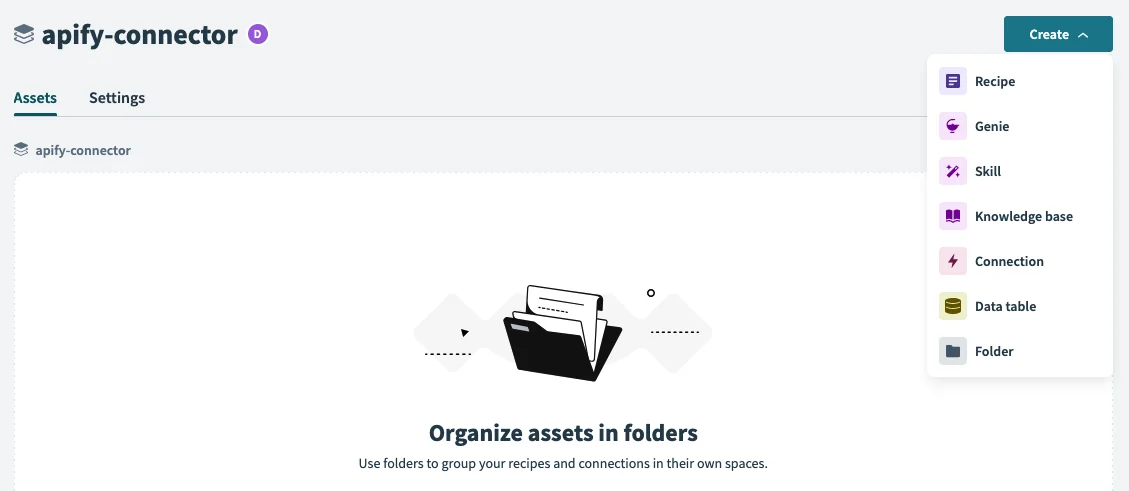
- Click the Create button.
- Select Connection.
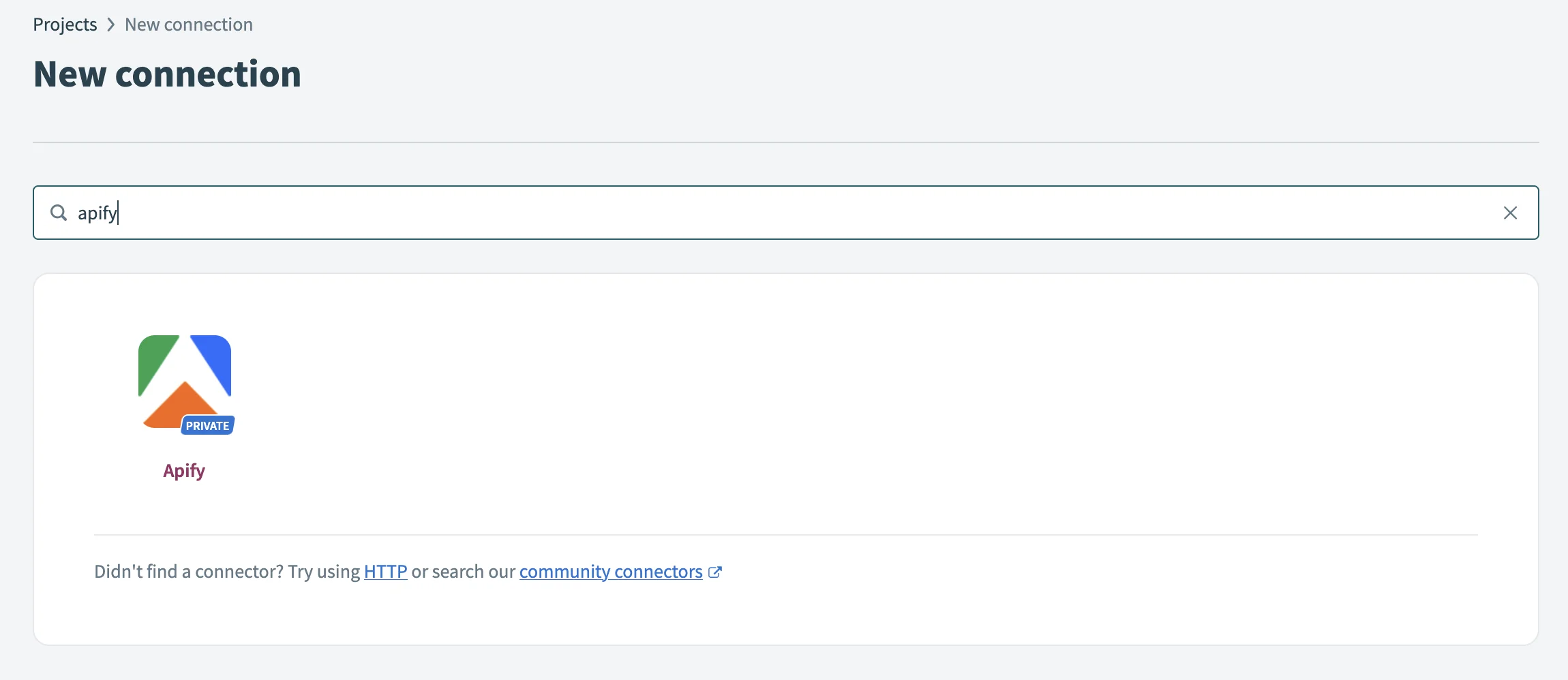
- Search for Apify and choose the Apify connector.
- In the connection dialog, enter your API Token. To get one, create an API token in Apify Console and copy it.
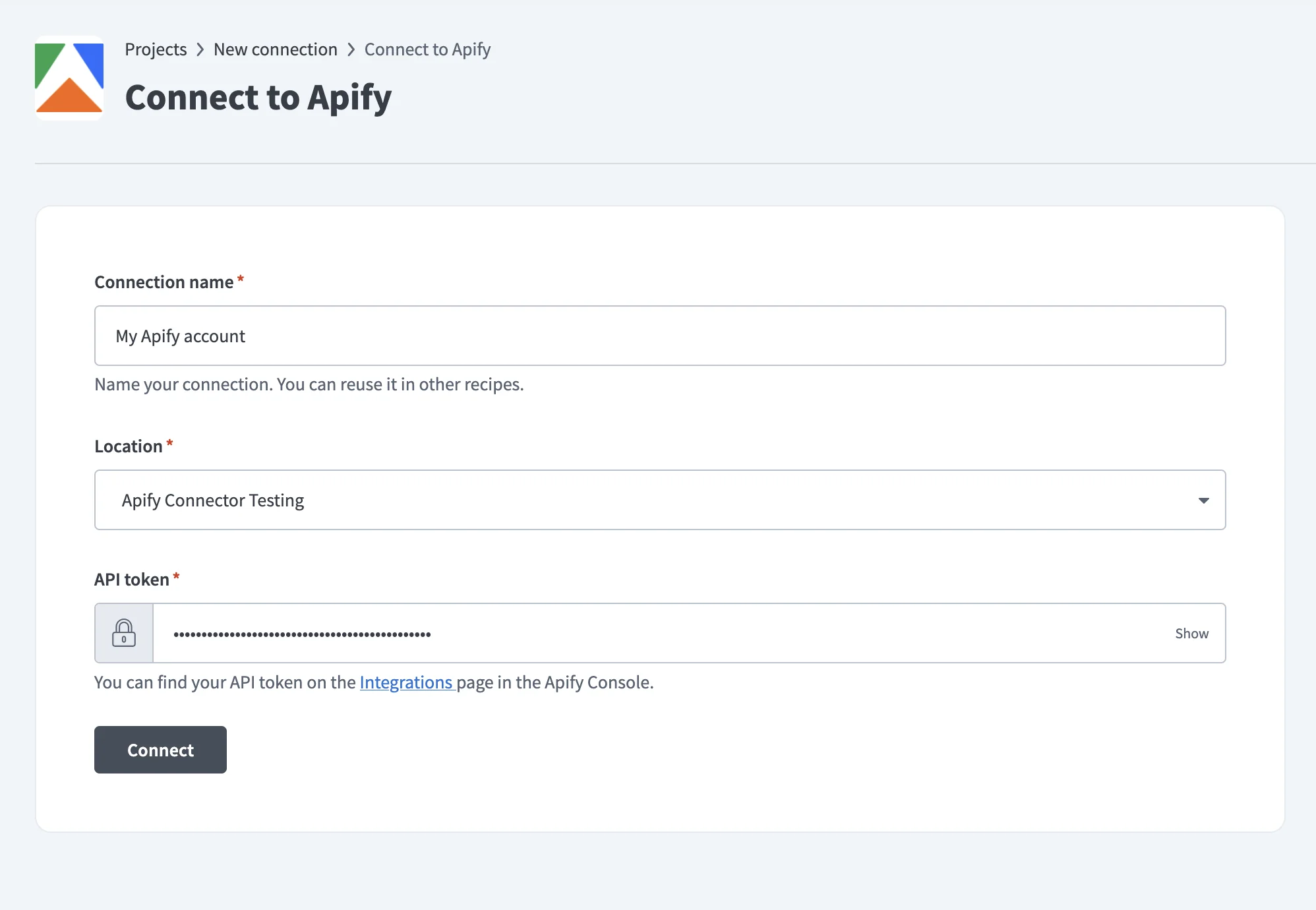
- Click Connect. Workato tests the connection by making an authenticated call to verify your credentials.
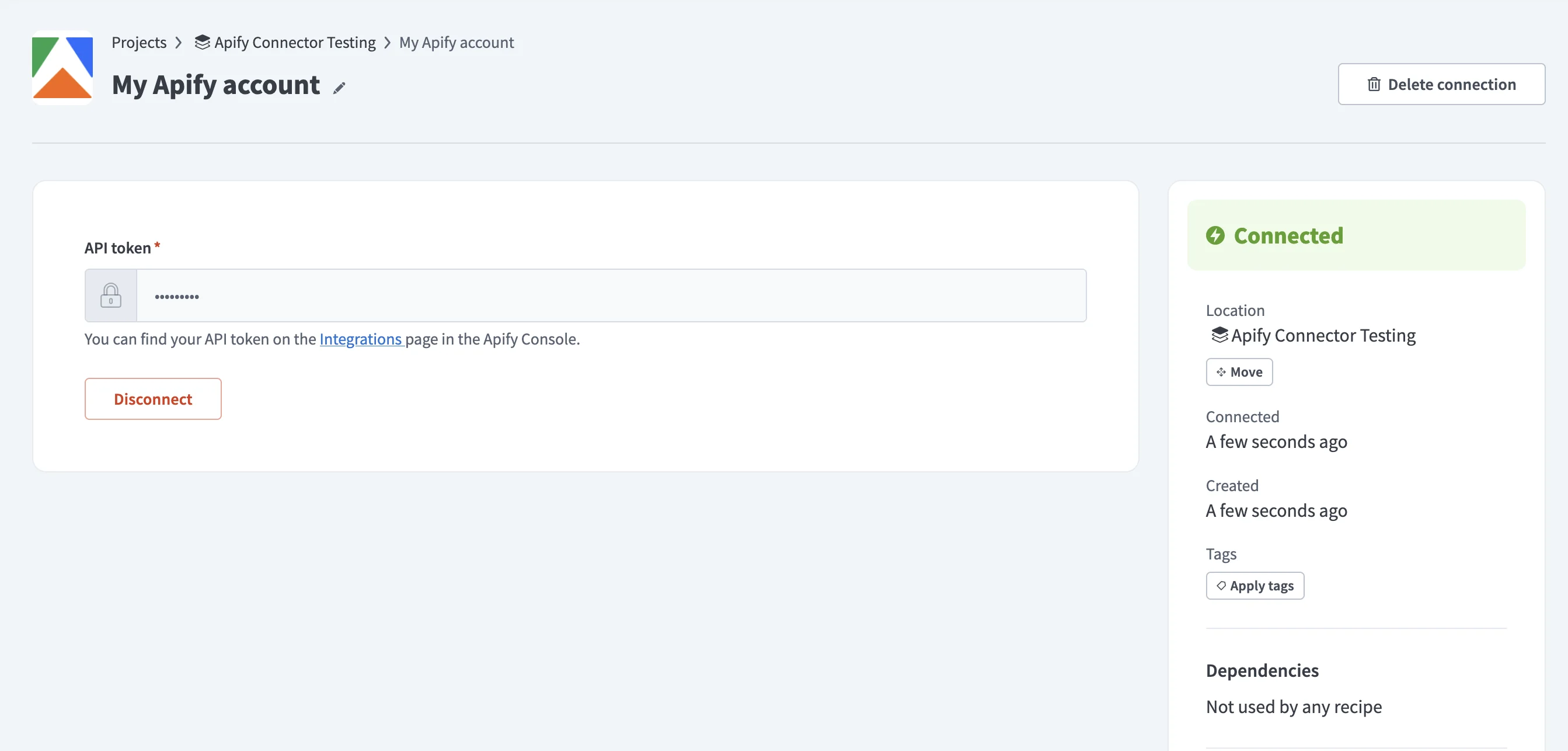
Once you create and authenticate the connection, you can use it in any recipe.
Build recipes
A recipe begins with a trigger (an event that starts the workflow) and includes one or more actions (operations to perform). The sections below describe the triggers and actions available in the Apify connector.
Triggers
Each connector trigger and action field in Workato includes inline help text describing the parameter and expected format.
The Apify connector provides the following triggers that monitor your Apify account for task completions:
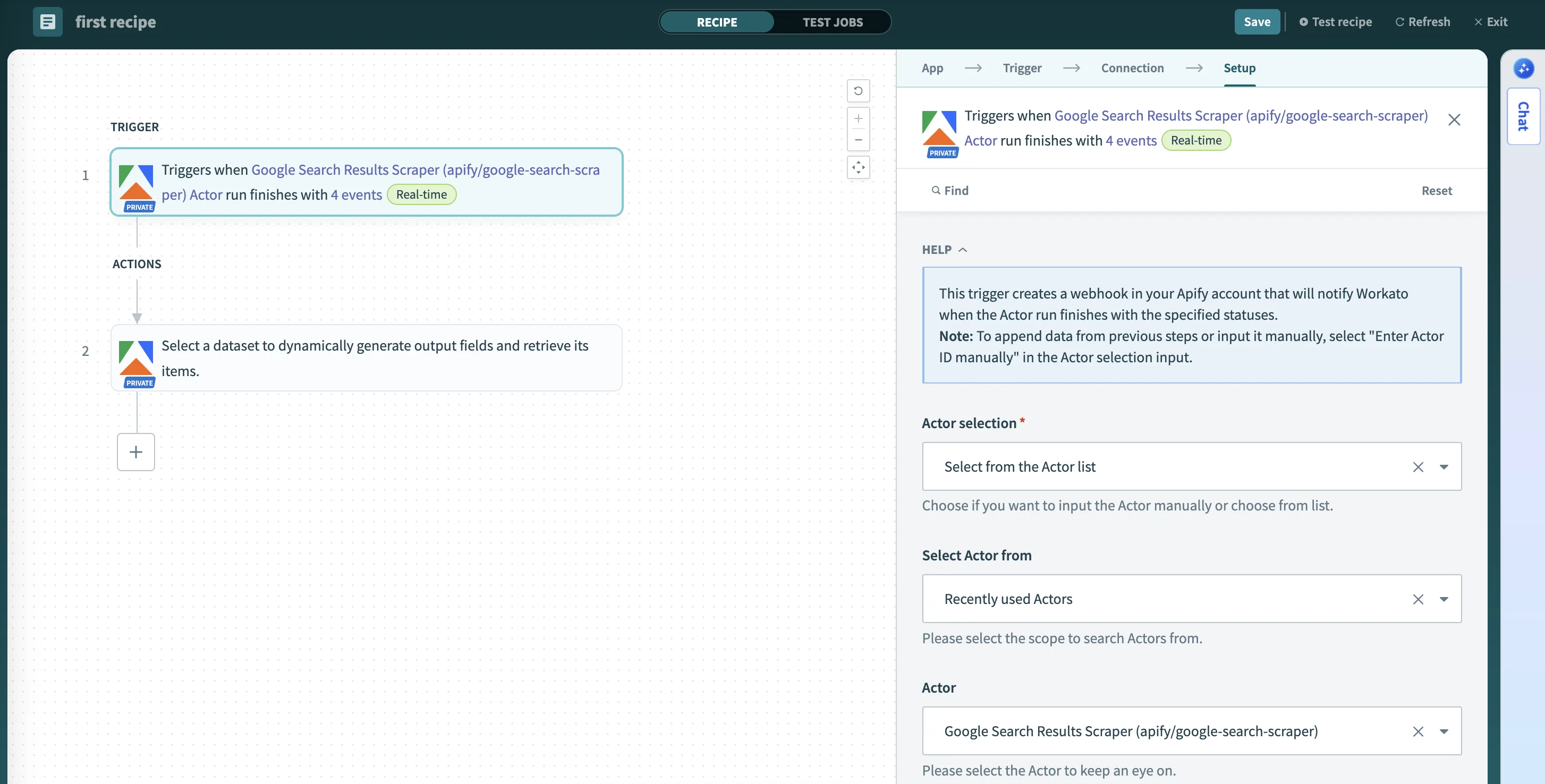
Actor run finished
Triggers when an Apify Actor run finishes (succeeds, fails, times out, or gets aborted).
This trigger monitors a specific Apify Actor and starts the recipe when any run of that Actor finishes, regardless of the outcome. You can:
- Select the Actor from recently used Actors or Apify Store Actors.
- Choose to trigger on specific statuses (
ACTOR.RUN.SUCCEEDED,ACTOR.RUN.FAILED,ACTOR.RUN.TIMED_OUT,ACTOR.RUN.ABORTED). - Access run details, status, and metadata in subsequent recipe steps.
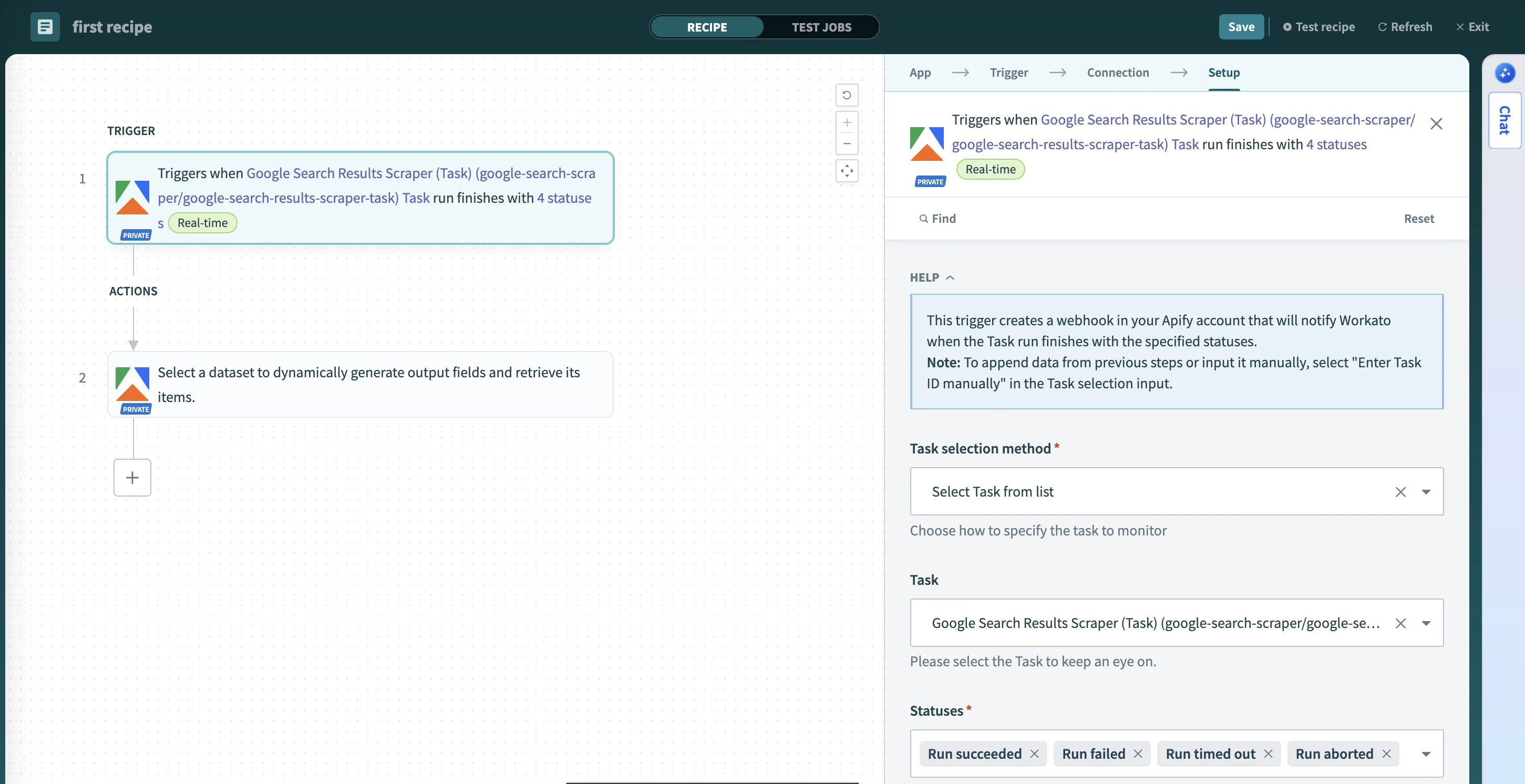
Task run finished
Triggers when an Apify task run finishes (succeeds, fails, times out, or gets aborted).
This trigger creates a webhook in your Apify account that notifies Workato when the selected task run finishes. It watches a specific saved task (an Actor with preset inputs) and you can choose which statuses to monitor (ACTOR.RUN.SUCCEEDED, ACTOR.RUN.FAILED, ACTOR.RUN.TIMED_OUT, ACTOR.RUN.ABORTED). Use this trigger to:
- Monitor scheduled or recurring tasks.
- Build workflows dependent on specific data collection tasks.
- Process results from tasks with predefined configurations.
Actions
The Apify connector offers actions to interact with the Apify platform.
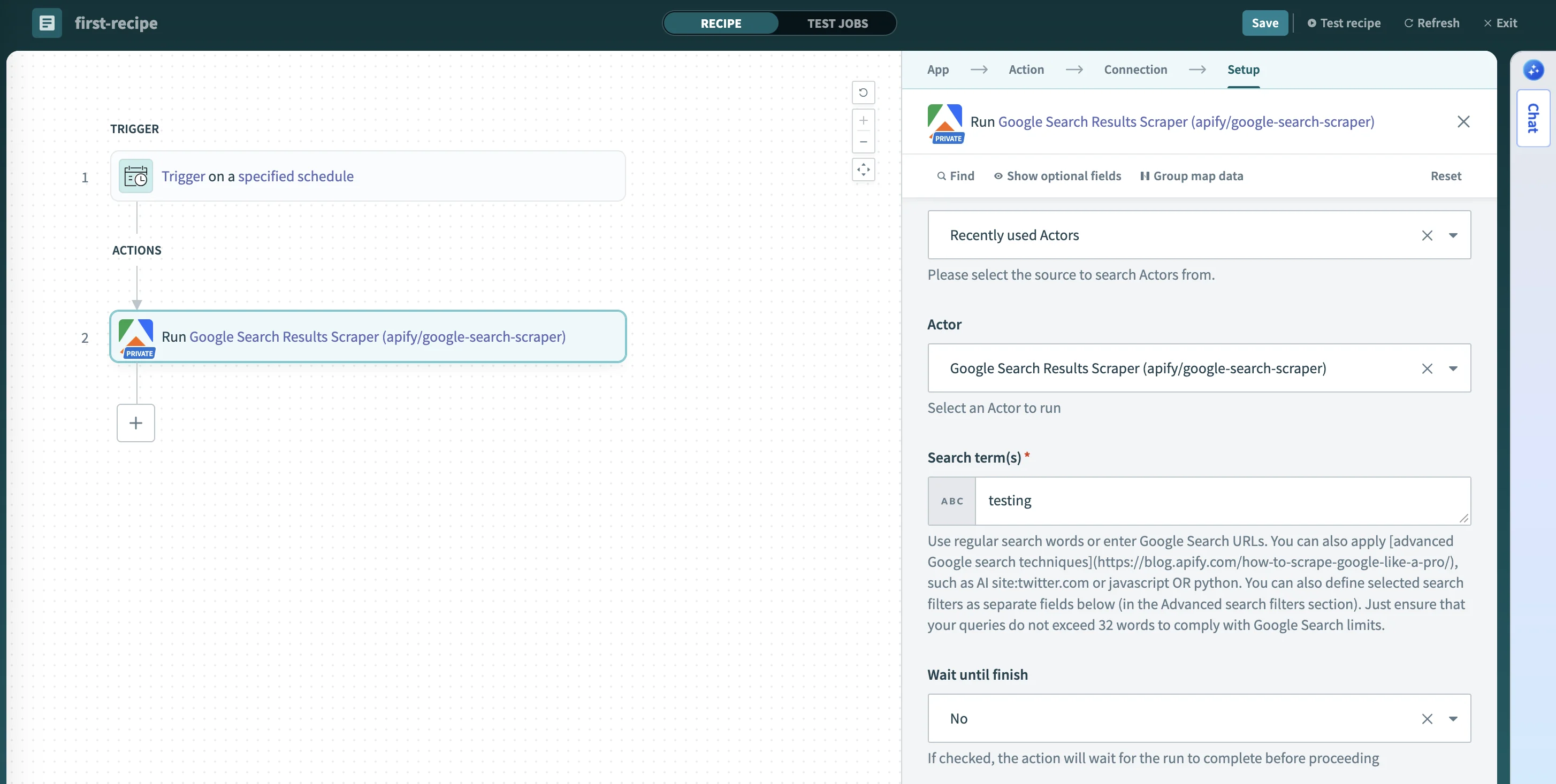
Run Actor
Run an Apify Actor with customizable execution parameters.
This action runs an Apify Actor with your specified input and execution parameters, either synchronously (wait for completion) or asynchronously. You can:
- Select from your recently used Actors or Apify Store Actors.
- Provide input using dynamic schema-based fields or raw JSON.
- Configure run options: memory (128 MB to 32 GB), timeout, and build tag (defaults to the Actor's default build tag).
- Choose between synchronous (wait for completion) or asynchronous execution.
URL input fields are validated before the run starts. The dataset item limit rejects zero or negative values; leave it empty for no limit.
Each input field includes a description showing the expected format and valid values.
Default values for input fields will be displayed as placeholders, giving you a starting point for configuration.
Run task
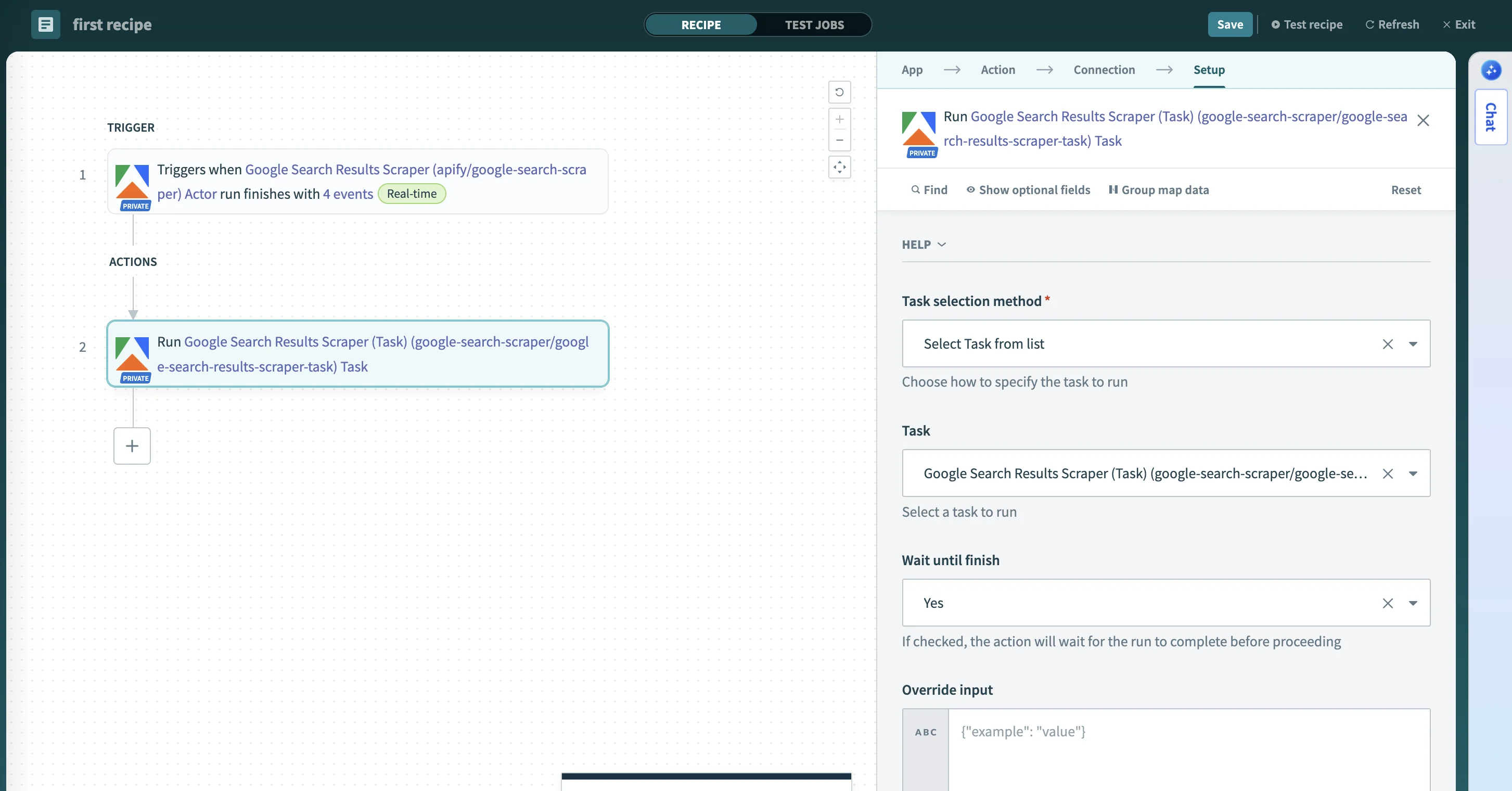
Run an Apify Actor task with optional input overrides.
This action runs an Apify task with optional input overrides and execution parameters. Use tasks for repeated executions - they are pre-configured Actor runs with saved input. You can:
- Select from your saved tasks or input a specific task ID.
- Override the task's pre-configured input with new JSON if needed.
- Configure task options: memory (128 MB to 32 GB), timeout, and build tag (defaults to the Actor's default build tag).
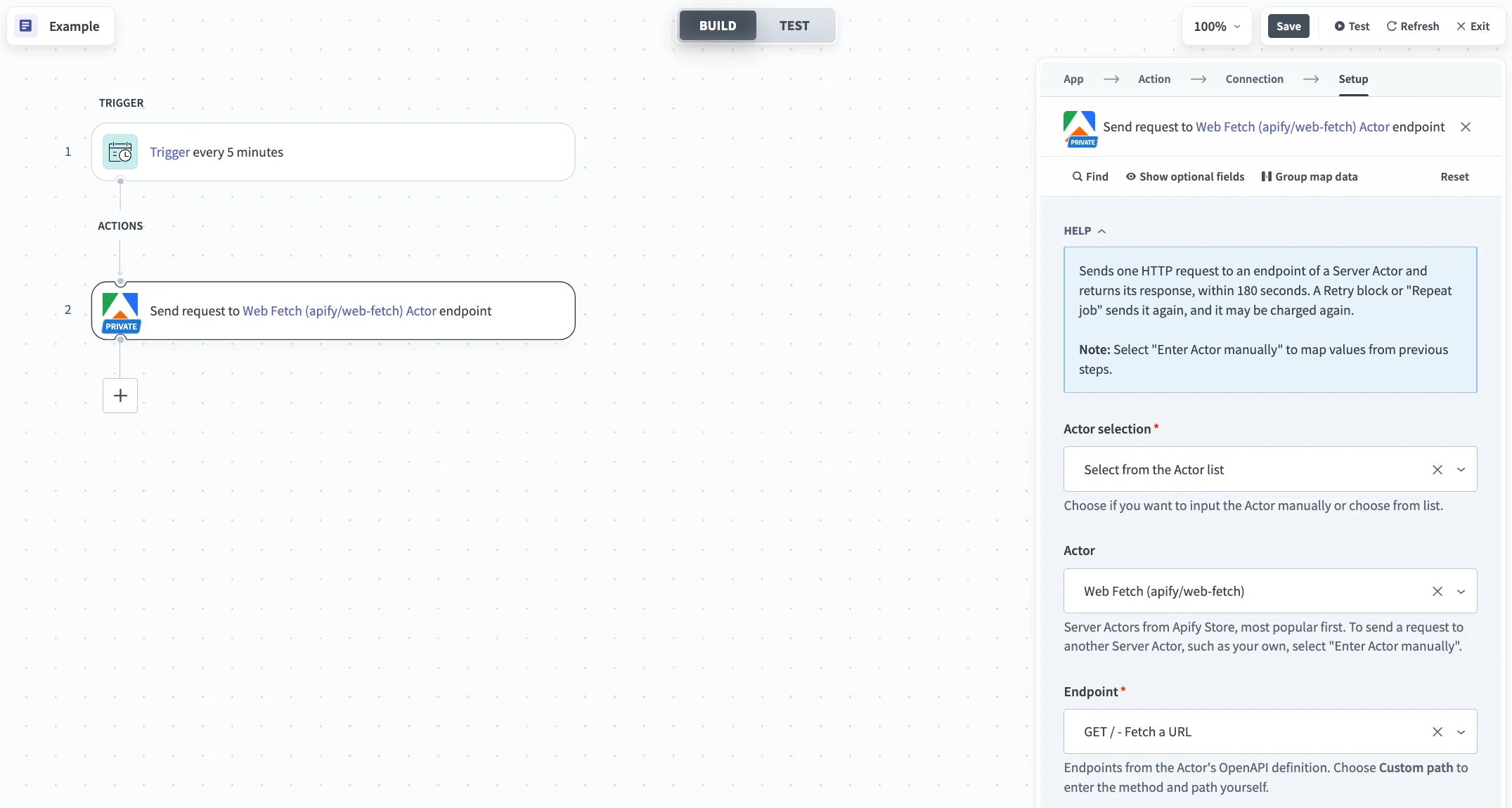
Send Server Actor request
Send a request to a Server Actor and get its response.
A Server Actor answers HTTP requests in real time, like a web API. This action sends one request to it and returns the response in the same recipe step. You can:
- Select a Server Actor from Apify Store, or enter any Server Actor manually.
- Pick an endpoint from the Actor's web server schema, or choose Custom path to enter the method and path yourself.
- Fill in the request body in fields built from the endpoint, or as JSON in Body (JSON).
- Use the response as Body (JSON object), Body (list) (JSON array), or Body (text).
The Actor has to answer within 180 seconds, Workato's limit for an action. The step fails on an error status, a redirect, or a binary response. A Retry block or Repeat job sends the request again, and the Actor may charge for it again.
Get dataset items
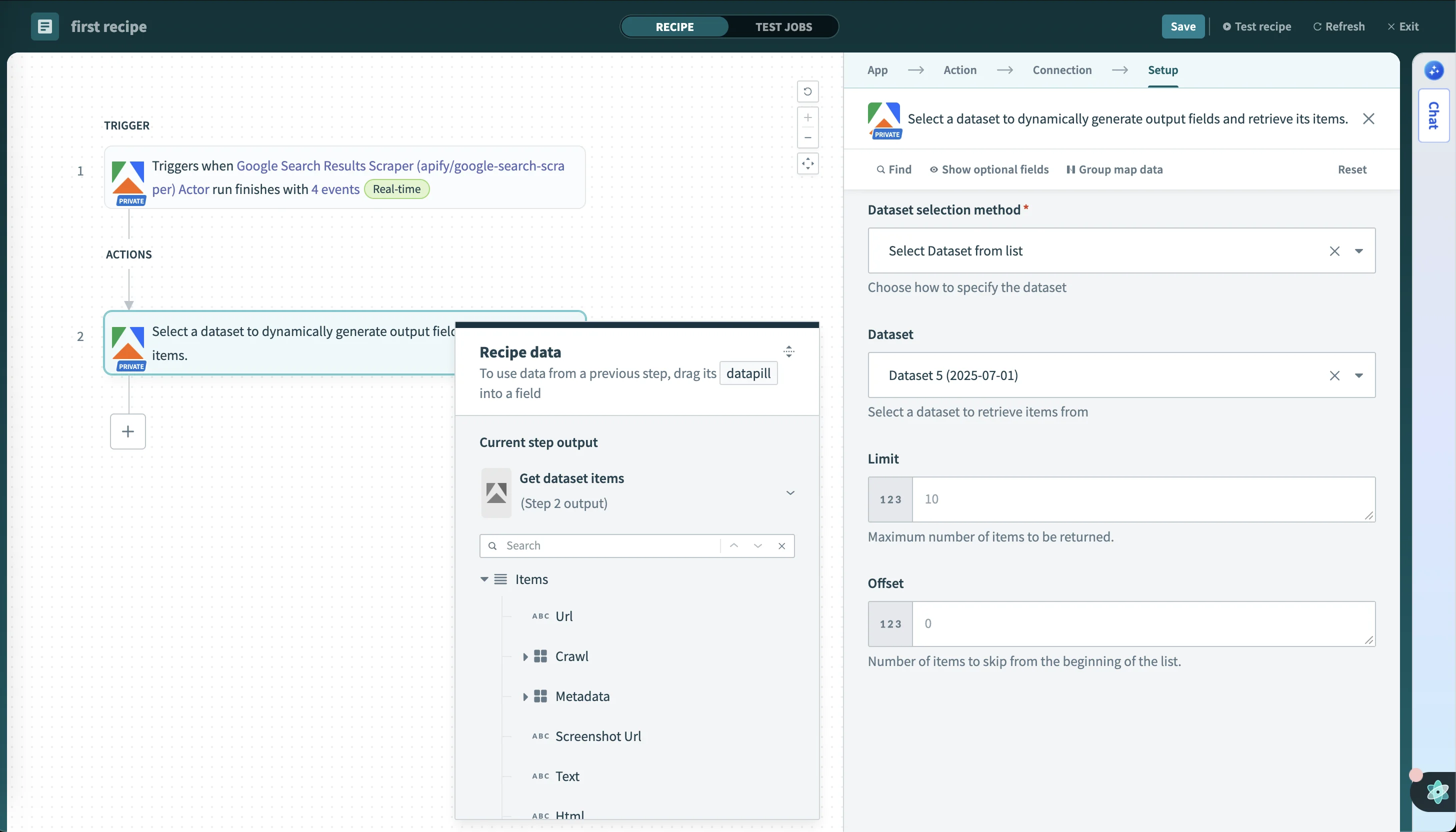
Retrieve items from a dataset with dynamic field mapping.
Select a dataset to dynamically generate output fields and retrieve its items. This action automatically analyzes the dataset structure and creates appropriate output fields for your recipe. Key features:
- Automatically detects and creates output fields based on dataset structure.
- Retrieves data records from specified datasets with pagination support.
- Returns structured data ready for downstream recipe steps.
Dynamic schema detection
The connector samples your dataset to create appropriate output fields:
- Works best with consistent data - when all items have the same field names and data types.
- May have limitations with mixed data - if items have different structures or field types.
- Samples up to 25 items - fields that only appear after the first 25 items won't be detected.
Use datasets where all items follow a consistent structure. Test with a small sample to verify field mappings work as expected.
Get key-value store record
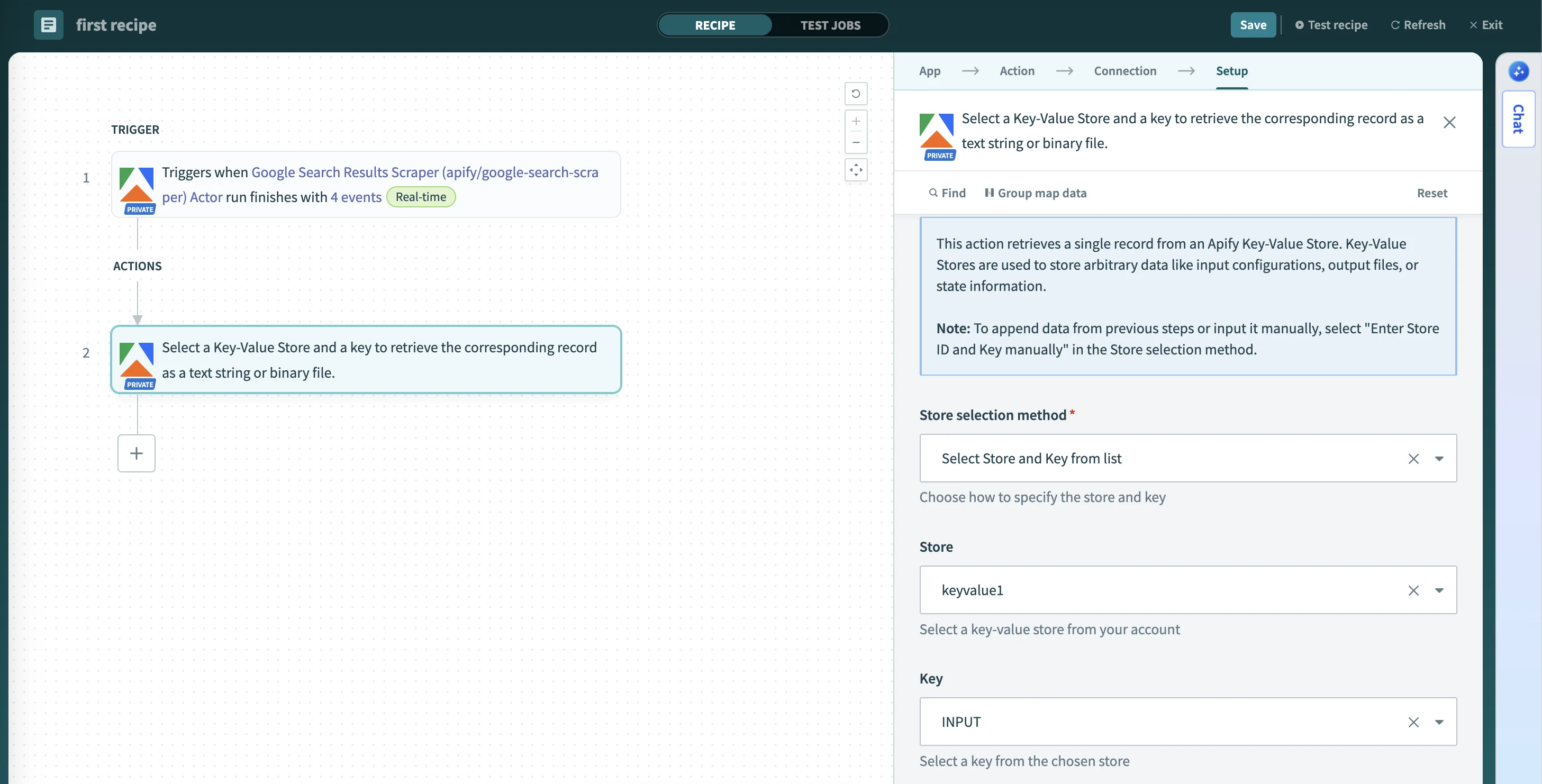
Retrieve a single record from a key-value store.
Select a key-value store and a key to retrieve the corresponding record as a text string or binary file. Key-value stores often contain metadata, logs, or files from Actor runs. This action:
- Fetches named entries by key from specified stores with dynamic key selection.
- Accesses configuration data, screenshots, or custom outputs.
- Supports both text and binary content types.
- Enables flexible data retrieval for various use cases.
Web Fetch
Fetch one page and return it in the formats you choose.
The action calls the Web Fetch Actor and returns the page as Markdown, HTML, plain text, a list of links, or the raw content (base64-encoded for binary files).
The Formats input field defaults to Markdown. If you clear it, Web Fetch picks the format from the content type. To send custom HTTP headers, enter them as JSON, for example {"Accept-Language": "fr-FR"}.
Besides the page content, the output includes the final URL, page metadata, and a Fetch group with the HTTP status code and other fetch details.
The action still returns a page with an error status, such as 404. Read the status in Fetch > HTTP status code. The action fails only when Web Fetch can't reach the page. It skips content the page loads with JavaScript. To crawl more than one page, use Run Actor with Website Content Crawler.
Deprecated actions
The following action is deprecated. Existing recipes that use it keep working.
Scrape single URL
Scrapes one URL with the crawler configured on the action and returns the page as JSON. Use the Web Fetch action for new recipes.
Configure connector inputs
When building recipes, the Apify connector provides several ways to select resources and configure inputs.
Pick lists
Pick lists are dynamic dropdown lists in Workato that let you select resources without typing IDs manually. The Apify connector includes pick lists for selecting Apify resources. You can choose items from these lists or switch to manual input and paste an ID directly. If an item doesn't appear, make sure it exists in your account and has been run at least once, or paste its ID manually. The Server Actors list is the exception: it shows only Apify Store Actors, so enter any other Server Actor manually.
Available pick lists:
- Actors - Recently used Actors or Apify Store Actors, displaying the title and
owner/name - Server Actors - Server Actors from Apify Store, most popular first (in Send Server Actor request)
- Endpoints - Endpoints from the selected Actor's web server schema, plus Custom path (in Send Server Actor request)
- Tasks - Your saved tasks, displaying the task title and Actor name
- Datasets - Available datasets, sorted by most recent first
- Key-value stores - Available stores, sorted by most recent first
- Store keys - Keys available in the selected store
Input types
When you choose an Actor from the pick list, the connector fetches its input schema and renders matching fields. If schema fetching fails or you switch to manual input, a JSON field appears where you can paste valid JSON. For task inputs, you can optionally provide override input as JSON to modify the task's preconfigured settings.
If you use manual input instead of the dynamic fields, copy the JSON structure from Apify Console. Open the Actor or task input page, switch the format to JSON, and copy it. Replace the placeholder with your Actor or task ID:
https://console.apify.com/actors/<your-actor-id>/inputhttps://console.apify.com/actors/tasks/<your-task-id>/input
When you use the pick list, the connector fetches input fields automatically - no manual JSON needed.

Where to find resource identifiers
When using manual input instead of pick lists, you need to provide a resource identifier. Actors and tasks accept either an ID or a slug (e.g., owner/actor-name), so you can type the name directly without looking up the ID. For other resources, find the ID in Apify Console:
- Dataset: Storage > Datasets > dataset detail > API panel or URL.
- Also visible in the table on the Storage > Datasets page
- Key-value store: Storage > Key-value stores > store detail > API panel or URL.
- Also visible in the table on the Storage > Key-value stores page
- Webhook: Actors > Actor > Integrations tab.
Handle long-running scrapes
If an Actor run takes more than a few minutes (for example, scraping thousands of pages), a synchronous recipe step may time out while waiting for results. Instead of waiting in a single step, split the work across two recipes using an asynchronous pattern:
-
Start the run without waiting
- In a recipe, add the Run Actor action and configure inputs as needed.
- Run asynchronously (do not block downstream steps on completion).
-
Continue when the run finishes
- Build a separate recipe with the Actor run finished trigger.
- Filter for the specific Actor or task you started in step 1.
-
Fetch results and process
- In the triggered recipe, add Get Dataset Items (use the dataset ID from the trigger payload) and continue processing.
Tips and best practices
- Use output fields from Apify triggers and actions (called data pills in Workato) as inputs for subsequent steps.
- Map scraped data fields to CRM, database, or spreadsheet columns using Workato's visual interface.
- Build workflows that respond differently based on Actor run status or data content.
- Create Apify tasks for consistent, repeatable scraping jobs.
- For long-running Actors, use asynchronous execution and a separate trigger to monitor completion.
- Implement error handling for failed Actor runs using Workato's conditional logic.
- Be mindful of API rate limits when designing high-frequency workflows.
- Validate scraped data before sending to target systems.
Troubleshooting
- If the connection fails, verify your API token has the necessary permissions and hasn't expired.
- If an Actor doesn't appear in dropdowns, make sure it has been run at least once in your account.
- If a Server Actor doesn't appear in Send Server Actor request, enter it manually. The list shows only Server Actors from Apify Store.
- If a recipe times out waiting for results, use asynchronous execution and a separate trigger instead of waiting for completion.
- If JSON input is rejected, check that it's properly formatted and matches the expected Actor input schema.
- If URL or item limit validation fails, ensure URLs include a protocol (
https://) and item limits are positive integers or empty. - If a resource isn't found, check that IDs are correct and case-sensitive.
- If dataset items have missing or wrong fields, the connector may have sampled inconsistent data. It only checks the first 25 items to detect fields and types. Make sure your dataset has consistent field names and data types across all items.
For questions or help, join the Apify developer community on Discord.