Lovable integration
Lovable is an AI app builder that turns a prompt into a working web app. The Apify connector, built and maintained by Lovable, lets those apps call the Apify API through a shared connection, so an app can run Actors and display the results.
Apify is available as an app and chat connector: one connection works both in the project chat while you build and in the published app. Once the connection is linked to a project, your app can:
- Run Actors to scrape websites and automate browser workflows.
- Track an Actor run until it finishes.
- Read results from datasets and key-value stores.
- List recent Actor runs and their datasets.
This integration uses a third-party service. If you find outdated content, please submit an issue on GitHub.
Prerequisites
Before you connect the two platforms, you need:
- An Apify account - If you don't have one, sign up here.
- Apify API token - Get your token from the API & Integrations section in Apify Console. See API token for scope and expiration options.
- A Lovable account - App and chat connectors are available on the Free, Pro, and Business plans.
- Permission to create connections - Enterprise plans restrict connection creation to No one by default, until an admin changes it in Connectors > Admin settings > App + chat connectors.
Connect Apify to Lovable
The connection lives at the workspace level, so you create it once and reuse it across projects.
-
In Lovable, open Connectors, search for
Apify, and select it. -
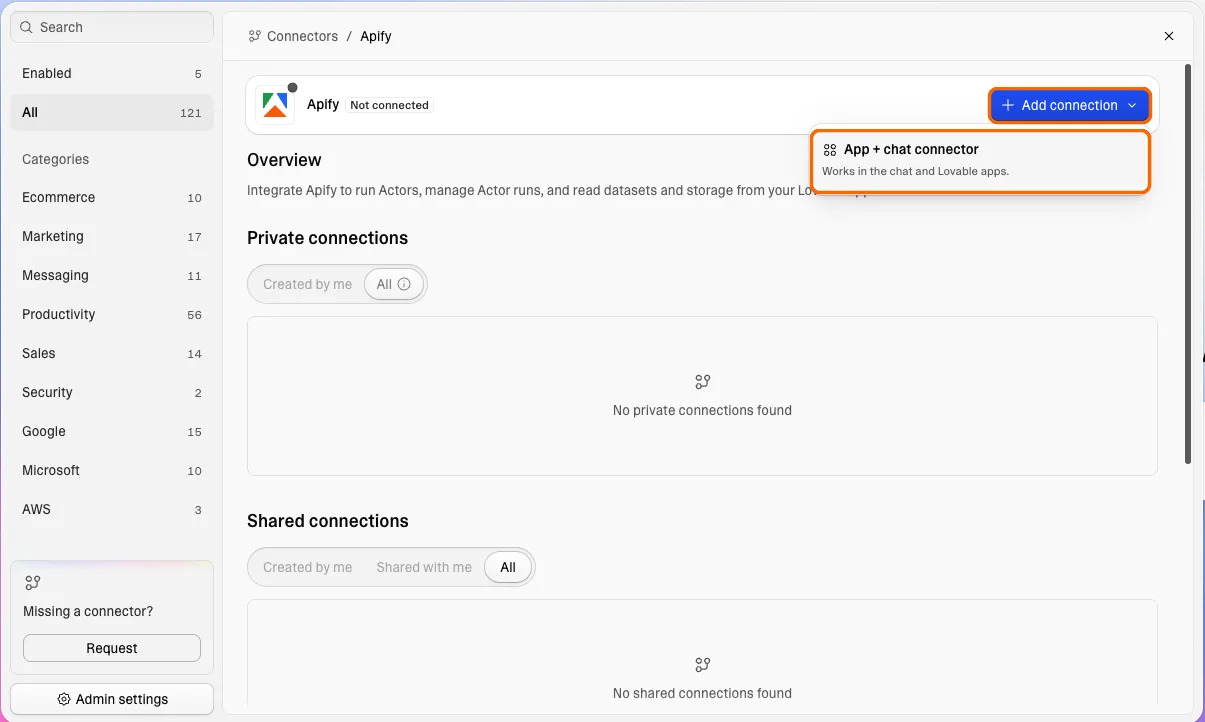
Select Add connection, then choose App + chat connector.
-
Fill in the connection dialog, pasting your Apify API token when it asks for one.
-
Select Connect.
A new connection is private to you. Share it with specific people or with the whole workspace to let them link it to their own projects.
You can create more than one connection, each with its own token, which keeps environments such as development and production separate. Revoking one token leaves the others working.
To use the connection in a project, ask Lovable in the project chat to link the project to it.
Build a feature that runs an Actor
After you link the project, describe the feature in the project chat and name the Actor you want to run. Lovable generates the API calls, the state handling, and the UI that renders the dataset.
Actors that pair well with a Lovable front end include:
- Google Maps Scraper for lead lists built from directory pages.
- Instagram Profile Scraper and TikTok Scraper for social monitoring feeds.
- E-commerce Scraping Tool for price tracking dashboards.
- Website Content Crawler and Google Search Results Scraper for research and summarization pages.
Example prompts:
- "Use Apify and build a dashboard that runs the E-commerce Scraping Tool Actor on a list of product URLs and charts the price history."
- "Use Apify and build a console that lists recent Actor runs with status, duration, and a link to each dataset."
Runs started through the connector bill against your Apify plan, and the cost of each run stays visible in Apify Console. Lovable doesn't handle Apify billing.
Handle long-running Actor runs
Actor runs take anywhere from seconds to minutes, and the Apify API rate-limits both run creation and dataset reads. That shapes how you prompt.
For a long run, ask Lovable to start the run, poll the run status at a slow interval until it finishes, and only then read the dataset. For a short job, Run Actor synchronously and get dataset items starts the run and returns the dataset in one call. The run has to finish within 300 seconds, or the endpoint returns 408 Request Timeout.
Limitations
Two constraints are worth knowing before you design around the connector:
- Tokens aren't rotated automatically. When you rotate a token in Apify Console, update the Lovable connection with the new one. Requests fail until you do.
- Per-end-user Apify login isn't supported. Each connection represents a single Apify account, shared across every project linked to it, so all usage lands on that one account.
Manage the connection
Manage an existing connection from Connectors in Lovable: select Apify, then open the connection.
- Unlink a project to remove Apify access from that project while the connection stays available to the others.
- Delete the connection to remove it from the workspace. Deletion is permanent, removes the credentials from every linked project, and breaks any app feature that uses Apify until you add a new connection.
Deleting a connection in Lovable doesn't revoke the token in Apify. To cut off access entirely, delete the token in Settings > API & Integrations as well.
Troubleshooting
Most problems come down to the token, the connection, or Apify's rate limits.
Authentication errors
- Check the token is still valid - If you revoked or rotated the token in Apify Console, the connection keeps sending the old one. Create a new token and update the connection in Lovable.
- Check the token's permissions - A token with limited permissions can't reach an Actor or storage outside its scope. Use a token that covers what the app runs and reads.
Rate-limited requests
- Back off on
429- A429response means the Apify API is rate-limiting your account. Ask Lovable to retry with exponential backoff rather than re-sending at a fixed interval, otherwise the app stays throttled. - Slow the polling down - Polling a long run too often burns the same rate limit the run itself needs. See Handle long-running Actor runs.
Connection not available
- Check who can create connections - On Enterprise plans, connection creation is set to No one until an admin changes it. See Lovable's admin controls.
- Check the project link - A connection does nothing until it's linked to a project. Ask Lovable in the project chat to link the project to it.
Actor run failures
- Check the run logs - Open the run in Apify Console to see why it failed.
- Check the Actor's input - An Actor rejects a run when required input is missing or malformed. Compare what the app sends against the Actor's input schema in Apify Store.