Flowise integration
The Flowise team has discontinued the project. The code stays open source, so existing deployments keep working, but there are no further releases or official support. Consider another integration before you invest time in a new Flowise setup.
Flowise is an open-source UI visual tool to build customized LLM flows using LangChain.
This integration uses a third-party service. If you find outdated content, please submit an issue on GitHub.
How to use Apify with Flowise
Installation
To use Flowise you have to download and run it locally. The quickest way to do so is to use the following commands:
-
To install Flowise globally on your device:
npm install -g flowise -
To start Flowise locally:
npx flowise start
It will be available on https://localhost:3000
Other methods of using Flowise can be found in their documentation
Build your flow
After running Flowise, you can start building your flow with Apify.
The first step is to create a new flow in the web UI.
In the left menu, you need to find Apify Website Content Crawler under Document Loaders.
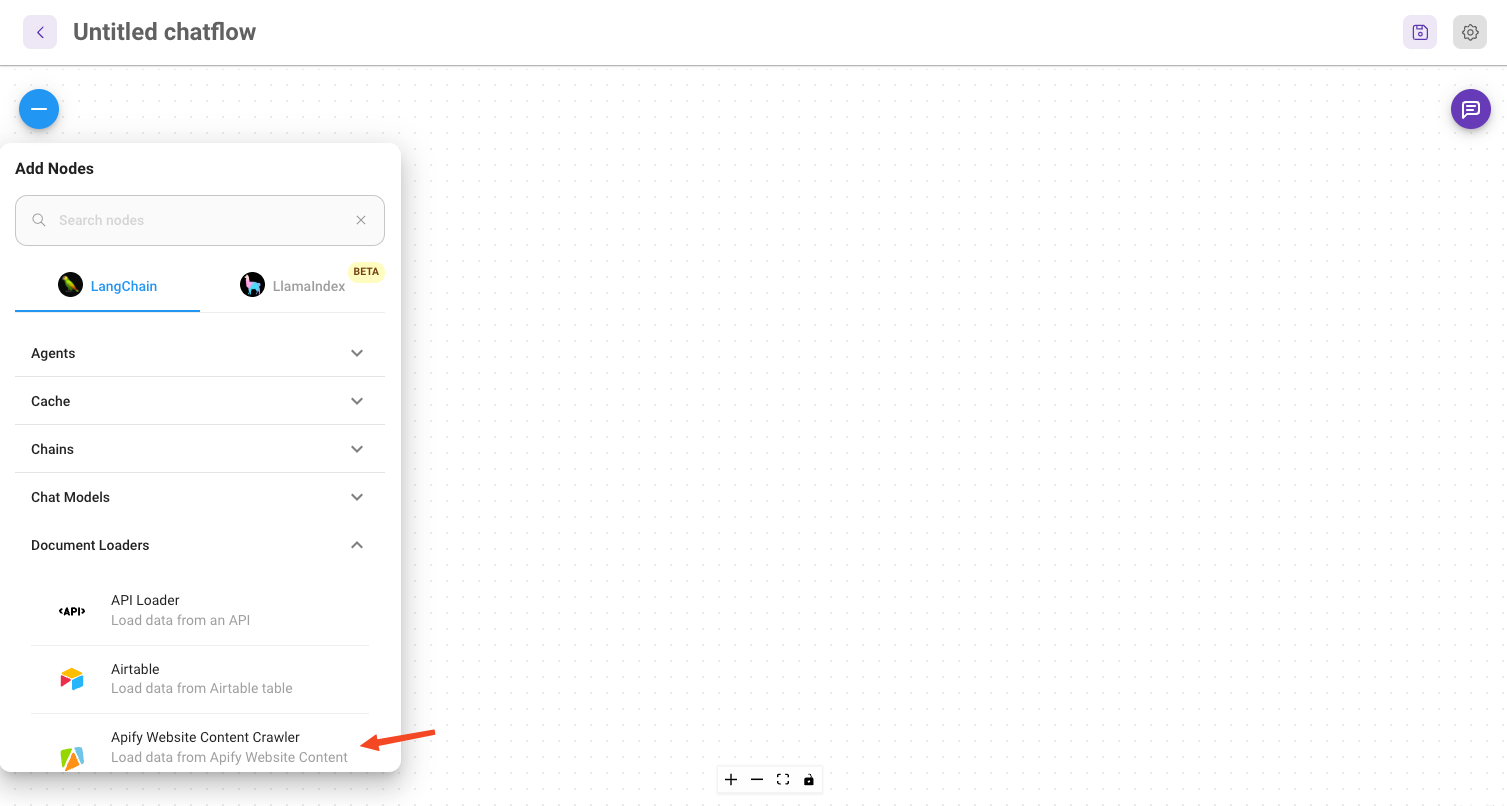
Now you need to configure the crawler. You can find more information about at Website Content Crawler page.
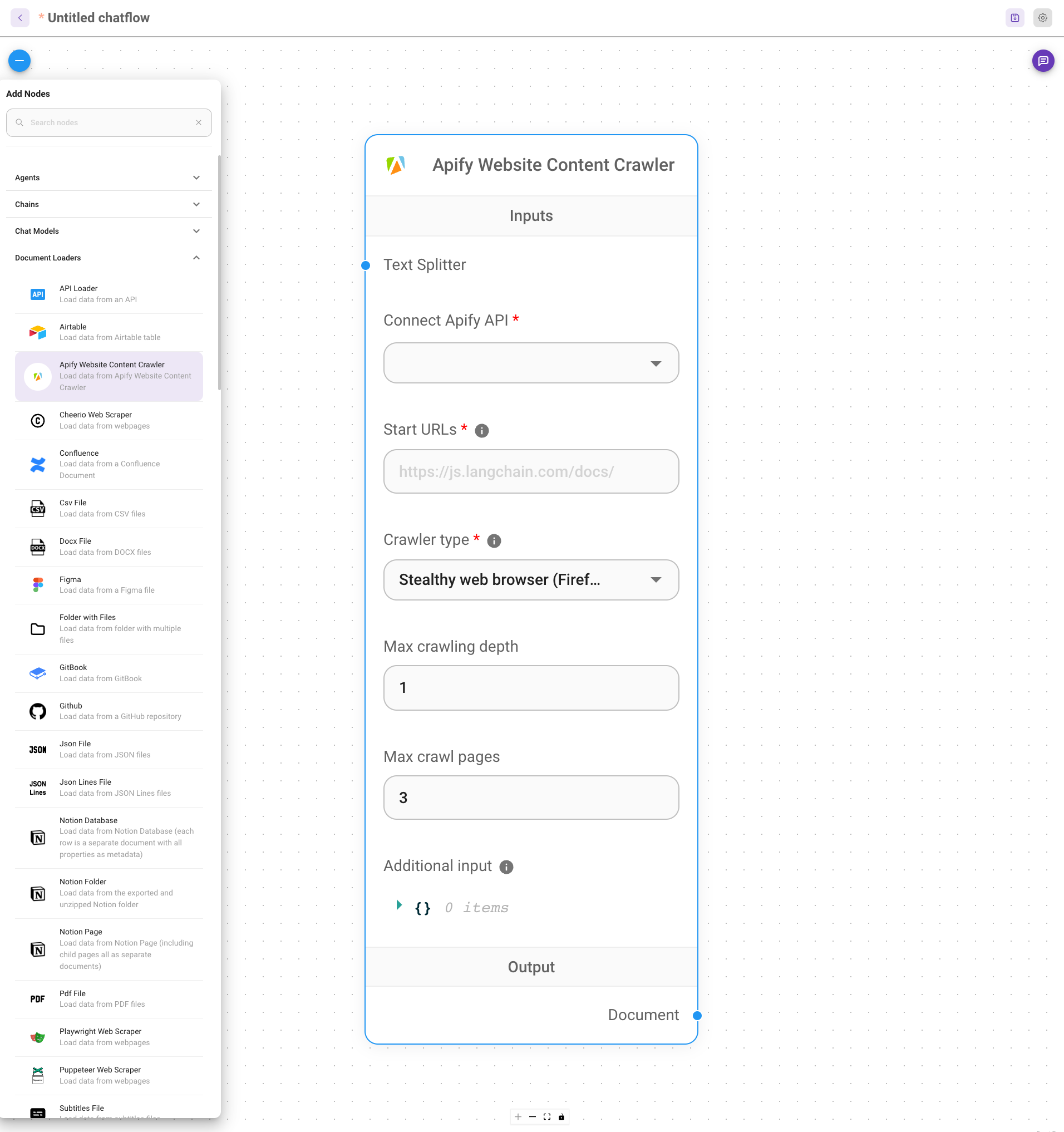
In the configuration, provide your Apify API token.
To get an API token, go to Settings > API & Integrations in Apify Console, select Create a new token, enter a description, select Create, and copy the token. You can view it only once, so store it somewhere safe, such as a password manager. If you lose it, rotate the token or create a new one.

You can add more loaders, or you can add some processors to process the data. In our case, we create the flow that loads data from the Apify docs using Website Content Crawler and save them into the in-memory vector database. Connect the ChatOpenAI and the OpenAI embeddings and QA retrieval into the chatbot.
The final flow can answer questions about Apify docs.

For more information visit the Flowise documentation.