Cursor integration
Cursor is an AI-powered code editor that understands your codebase, edits files, runs commands, and completes multi-step development tasks from natural-language prompts.
The Apify plugin for Cursor connects Cursor to Apify's library of Actors and bundles:
- The Apify MCP server for searching Apify Store, running Actors, and retrieving datasets through the Model Context Protocol (MCP).
- An
apifyrouting agent that picks the right tool or skill from a natural-language request. - Five built-in skills for common workflows (see Bundled skills below).
This guide covers installation from the Cursor plugin marketplace.
This integration uses a third-party service. If you find outdated content, please submit an issue on GitHub.
Prerequisites
- An Apify account - sign up for free if you don't have one.
- Cursor - installed and signed in locally.
Install the plugin
In the Cursor chat, run /add-plugin apify to install the plugin without leaving the editor.
To install from the plugin marketplace instead:
-
Open Cursor > Preferences > Cursor Settings.
-
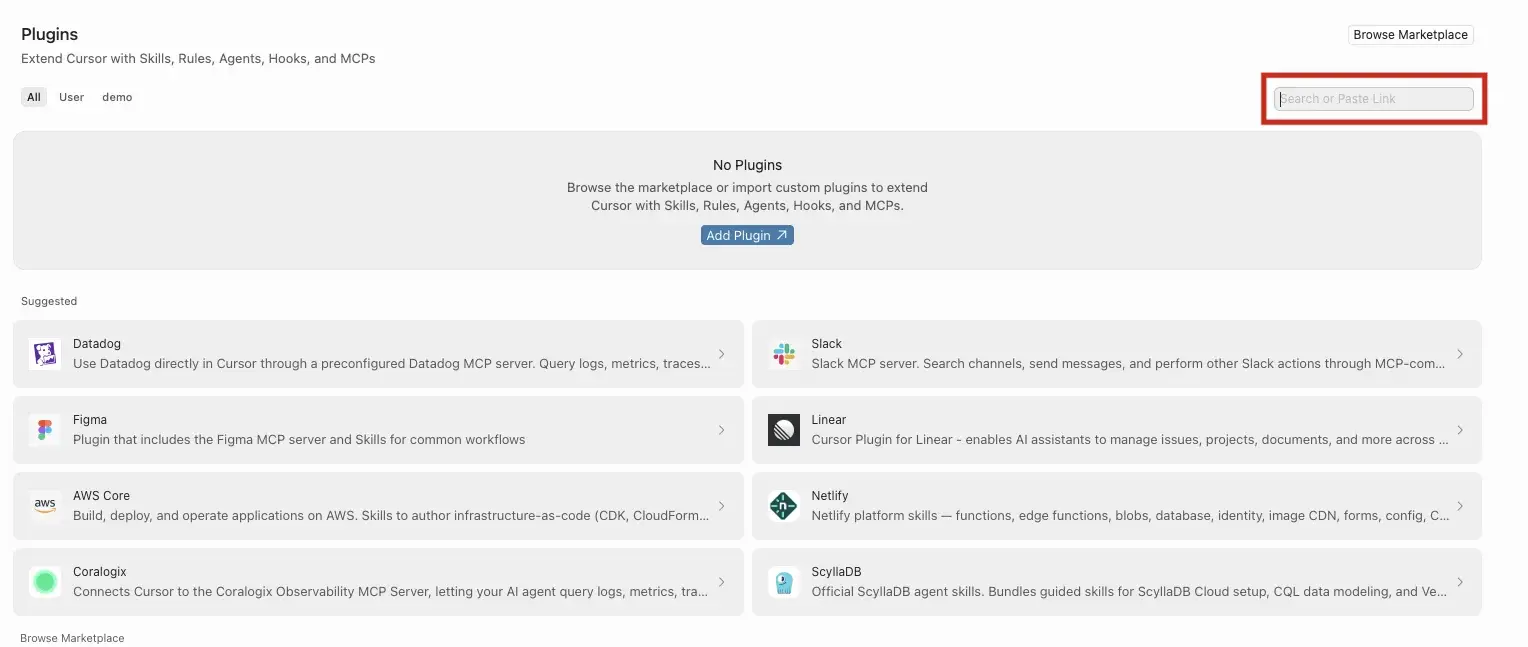
Select Plugins.
-
Search for Apify.
-
Select the Apify Cursor plugin from the results.

-
Click Get.
-
Choose an install scope. Select This project to enable the plugin only in the current project, or All projects to enable it for every project under your account.
Authenticate to Apify
The plugin bundles the Apify MCP server. Read-only tools like searching Apify Store and fetching Actor details work without signing in, but you need to authenticate to run Actors and access your account data.
-
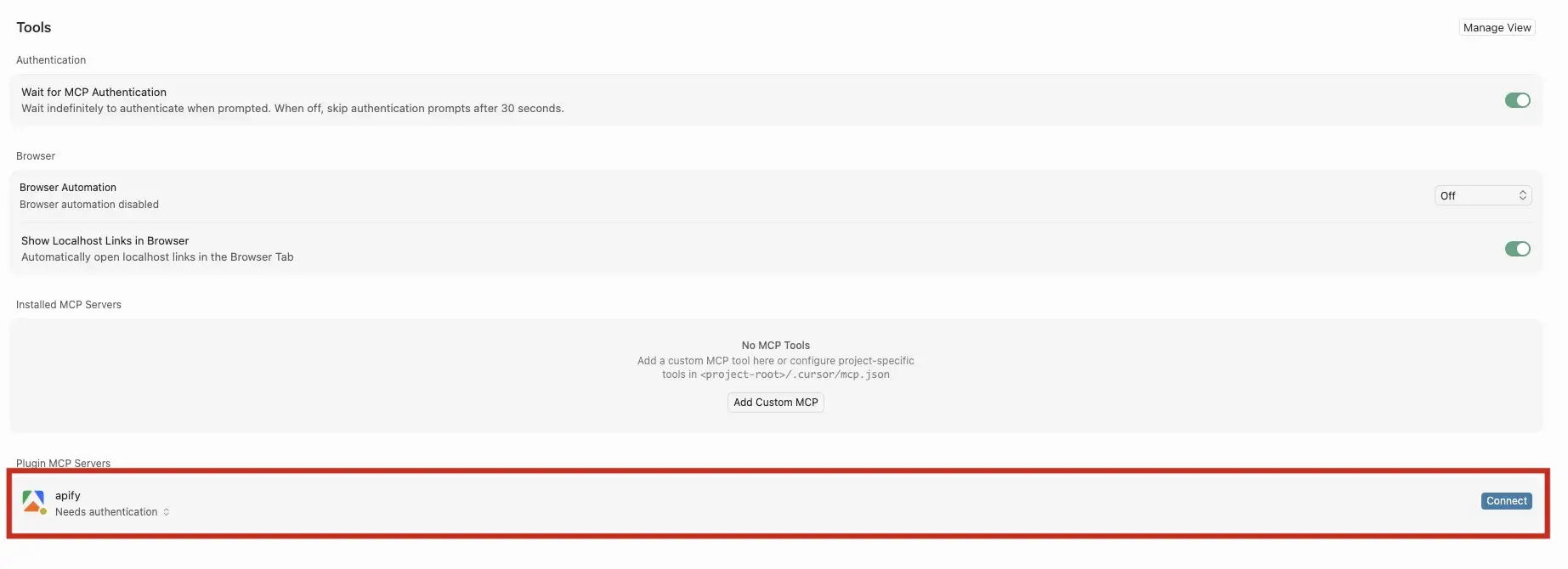
Open Cursor > Preferences > Cursor Settings and select Tools & MCPs.
-
Scroll to the bottom of the page. The Apify MCP server appears in the list.
-
Click Connect. Cursor opens a browser tab for the Apify OAuth flow.
-
Review the permissions and click Allow access.
-
Back in Cursor, the Apify MCP server shows as connected.
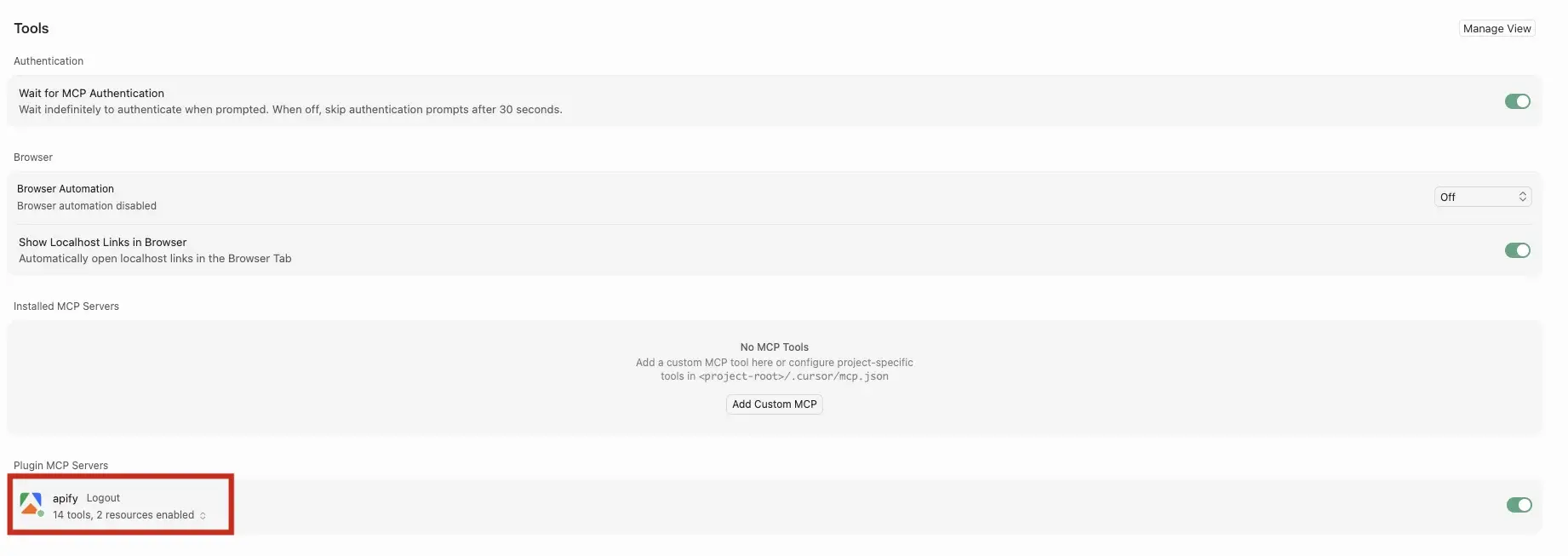
The connection stays authenticated for future sessions. You can revoke access at any time in Apify Console > Settings > Integrations.
Run your first prompt
Describe what you want in natural language. The apify agent routes the request to the right tool or skill, so you don't need to name tools yourself.
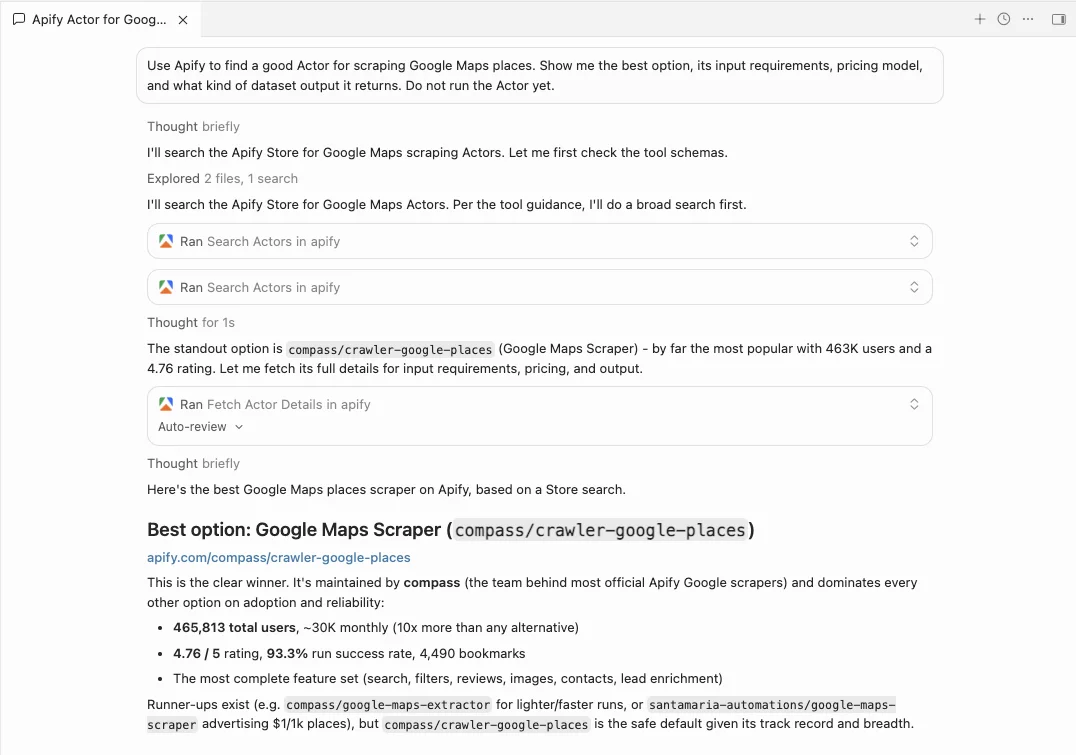
Use Apify to find a good Actor for scraping Google Maps places. Show me the best option, its input requirements, pricing model, and what kind of dataset output it returns. Do not run the Actor yet.
The agent searches Apify Store, fetches the top Actor's details through the Apify MCP server, and summarizes its inputs, pricing, and output - all without running the Actor.
Bundled skills
| Skill | Description |
|---|---|
apify-ultimate-scraper | Extraction using existing Actors for multi-step scraping and lead-generation workflows. |
apify-actor-development | Full Actor lifecycle - template selection, development, local testing, and deployment with apify push. |
apify-actorization | Converts existing JavaScript, TypeScript, Python, or CLI projects into Apify Actors. |
apify-generate-output-schema | Generates dataset and key-value store schemas for existing Actors. |
apify-sdk-integration | Integrates Actor execution into applications using the apify-client package. |
Example prompts that route to specific skills:
To run apify-ultimate-scraper:
Find 10 highly rated coffee shops in Seattle with name, address, rating, phone, and website.
To run apify-actor-development:
Create an Apify Actor that accepts a
startUrlandmaxPagesinput, crawls the site, and stores each page title and URL.
To run apify-sdk-integration:
Add Apify to this project. The Node.js API route should run an Actor and return dataset items as JSON.
Troubleshooting
The Apify MCP server stays disconnected
Open Cursor > Preferences > Cursor Settings, select Tools & MCPs, and toggle the Apify MCP server off and on. If it still doesn't connect, re-trigger the OAuth flow with Connect; see Authenticate to Apify.
Cursor picks the wrong skill
Start your request with @apify so the routing agent handles it. The agent owns the guardrails that pick the right skill and avoid common traps, such as confusing the apify and apify-client packages.
Browser doesn't open, or OAuth fails
If the browser doesn't open automatically, copy the OAuth URL shown by Cursor and paste it into your browser manually.
If you're running Cursor in a remote session, devcontainer, or over SSH where no browser is available, authenticate with an API token instead. Copy your token from Apify Console > Settings > Integrations and set it in your environment before starting Cursor:
export APIFY_TOKEN=<YOUR_API_TOKEN>
Limitations
- Long-running Actors may exceed the time a single tool call waits for completion. Reduce the scope or split the work across multiple prompts.
- Each Actor run consumes Apify platform usage from your plan in addition to any Cursor usage. See Billing for details.
- Skills that edit files in your project (Actor development, actorization, SDK integration) make local changes - review them before deploying or committing.
Related integrations
- MCP server integration - Use the Apify MCP server with other clients
- ChatGPT integration - Connect the Apify MCP server to ChatGPT
Resources
- Apify plugin for Cursor - Source repository and full README with advanced setup notes (Apify CLI install, all auth paths, available MCP tools)
- Cursor documentation - Official Cursor docs
- Apify Store - Browse Actors you can run from Cursor