Albato integration
Albato is a no-code integration platform that connects over 1,000 apps through a visual automation builder. With Apify integration for Albato, you can use Apify Actors as triggers or actions inside your Albato workflows to scrape data, run automation jobs, and pass results to any connected app.
Your Albato workflows can start Apify Actors or tasks, fetch items from a dataset, retrieve records from key-value stores, find Actor or task runs, or send custom requests to the Apify API.
You can use the Albato integration to trigger a workflow whenever an Actor or a task finishes.
This integration uses a third-party service. If you find outdated content, please submit an issue on GitHub.
Prerequisites
- An Apify account.
- An Albato account (free 7-day trial available).
Connect Apify with Albato
Step 1: Get your Apify API token
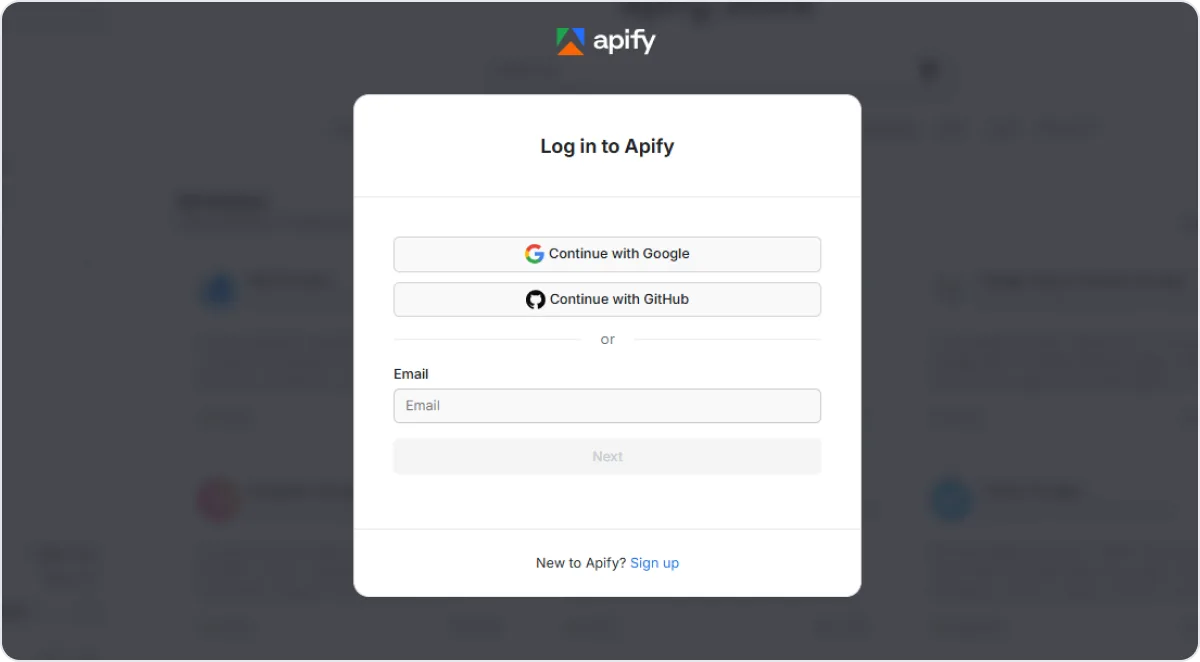
Log in to Apify Console.
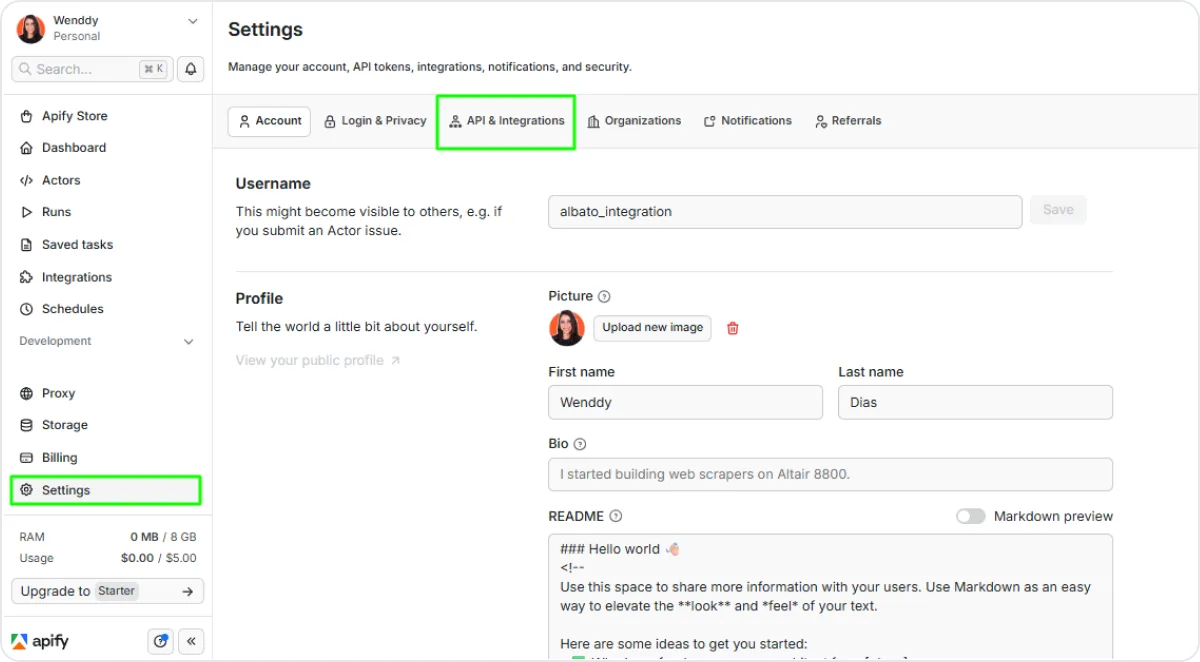
Go to Settings > API & Integrations.
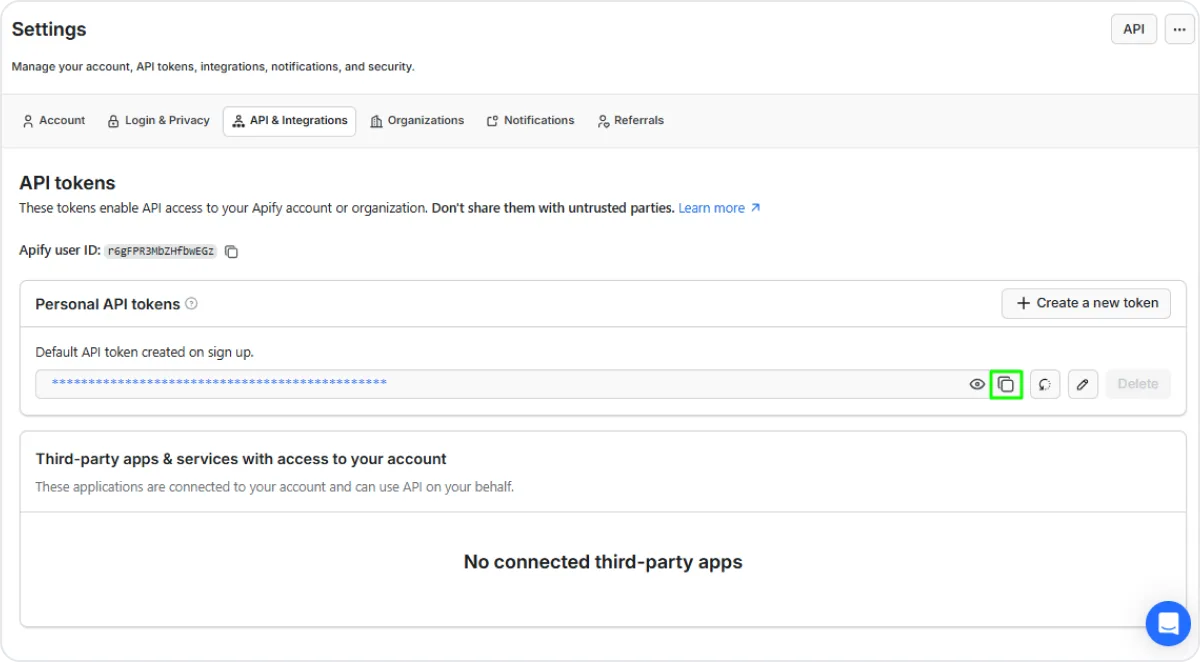
Copy your Personal API token.
Step 2: Create the Apify connection in Albato
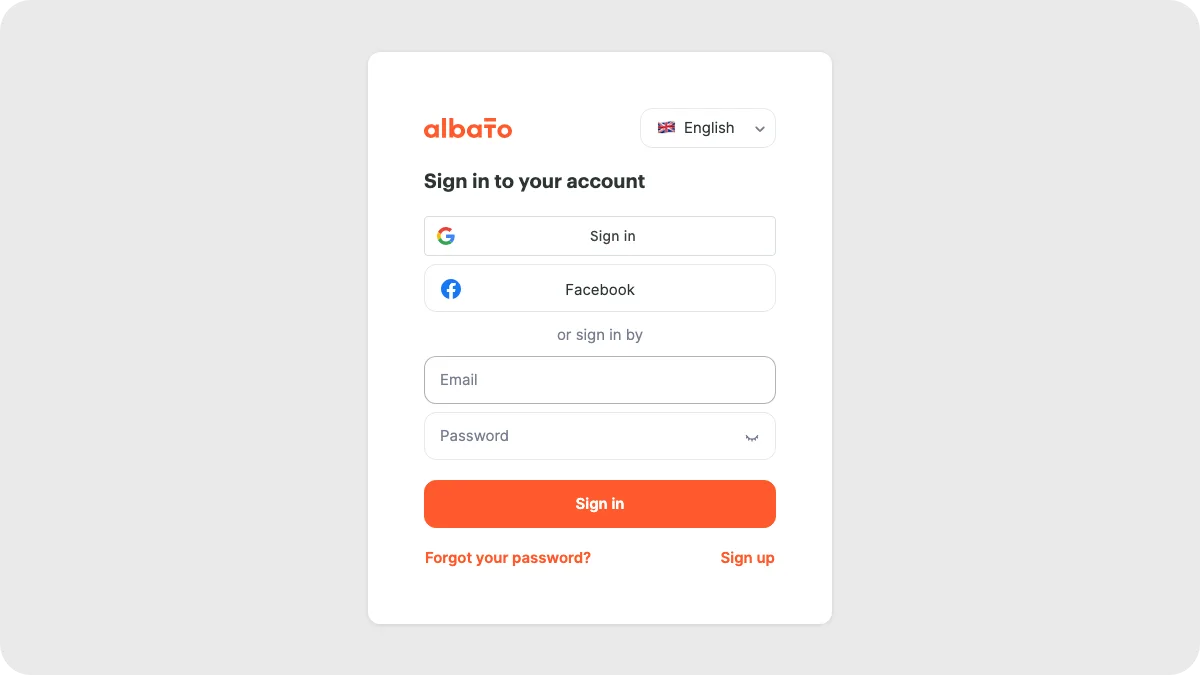
Log in to Albato.
Go to Apps and click Add a connection.
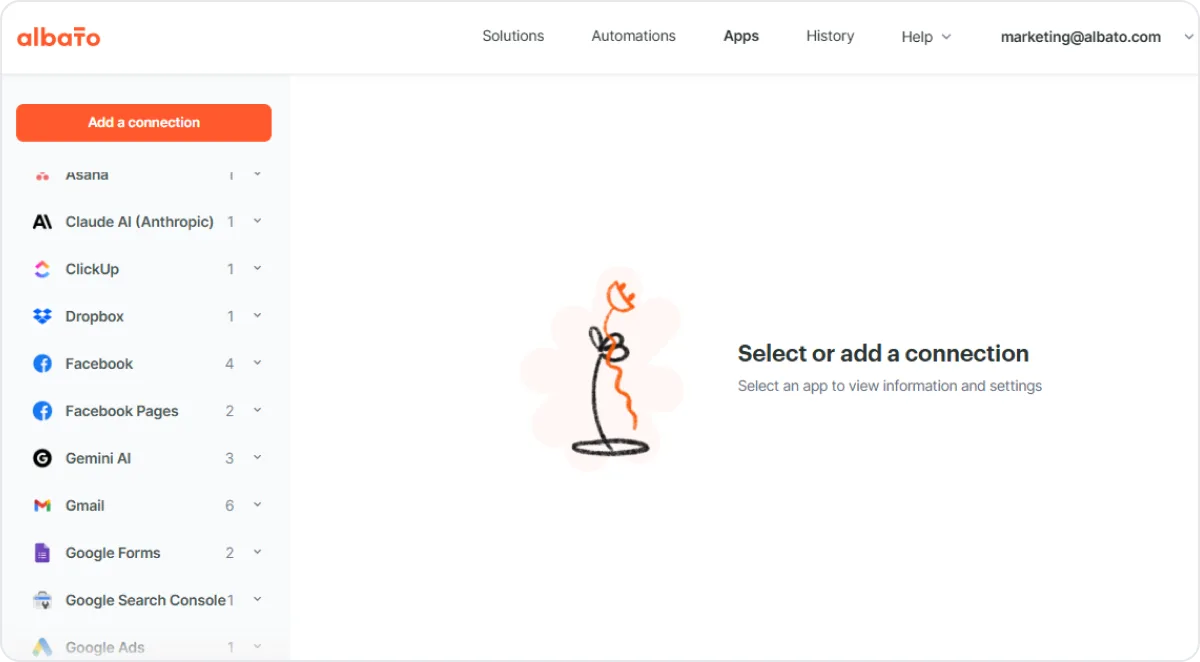
Search for Apify, select it, and click Add a connection.
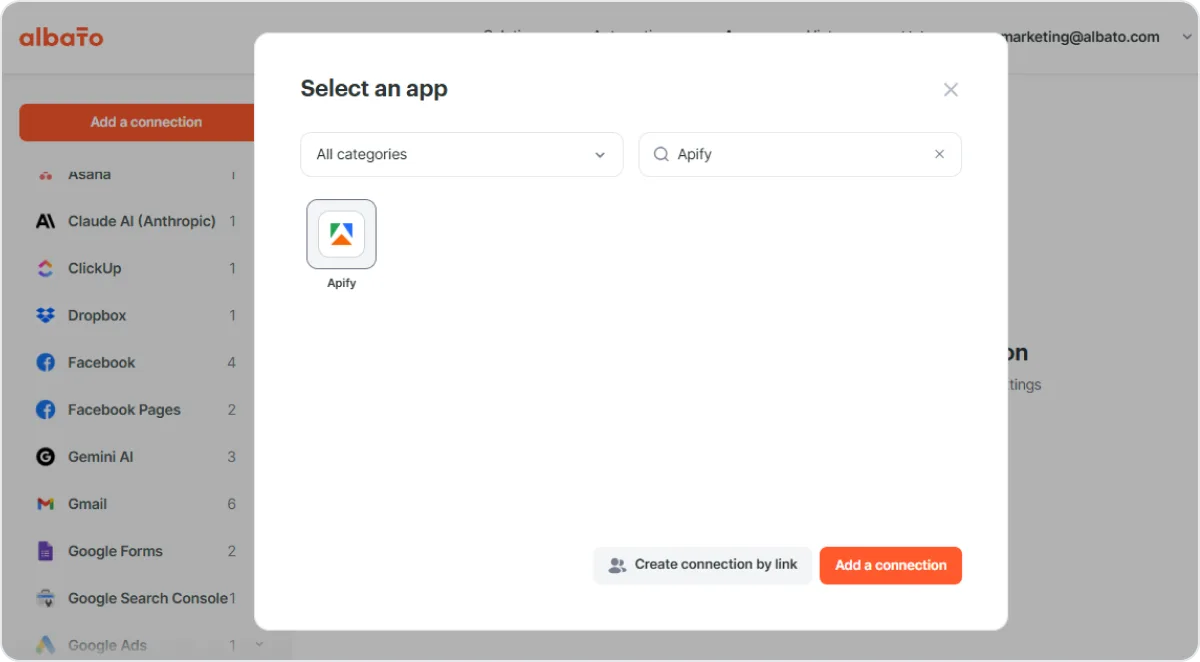
Paste the API token you copied from Apify and click Continue.
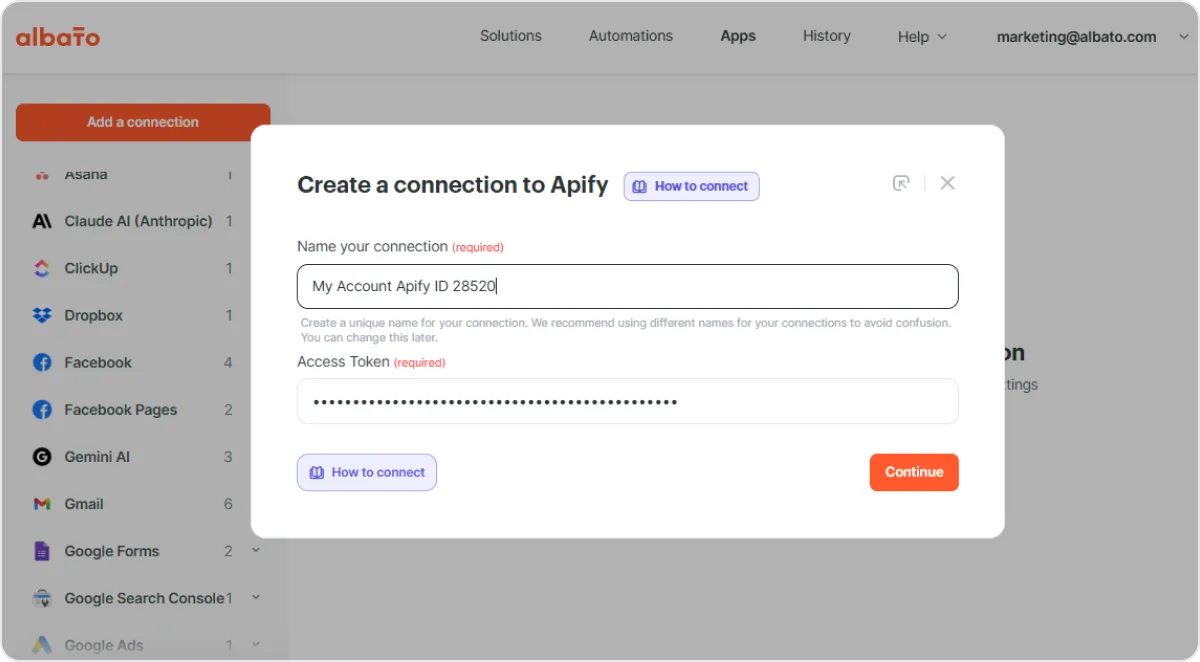
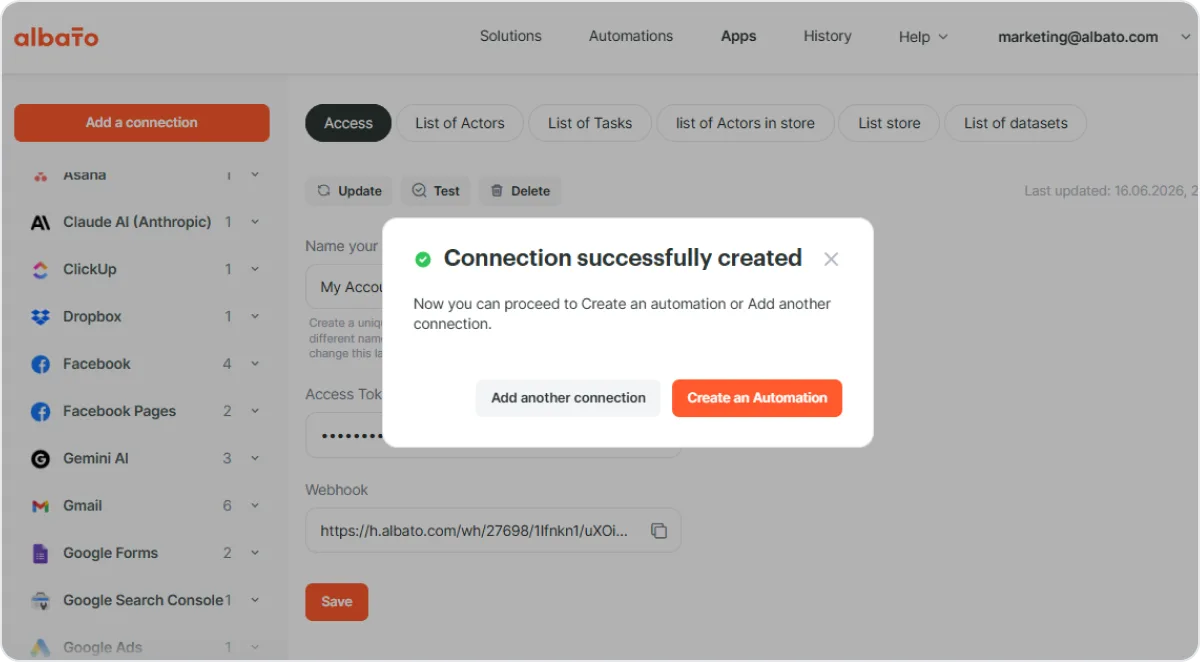
A success notification confirms the connection is active.
Build a workflow with an Apify trigger
This example shows how to scrape data with an Apify Actor and automatically send the results to Google Sheets.
Step 1: Create a new automation
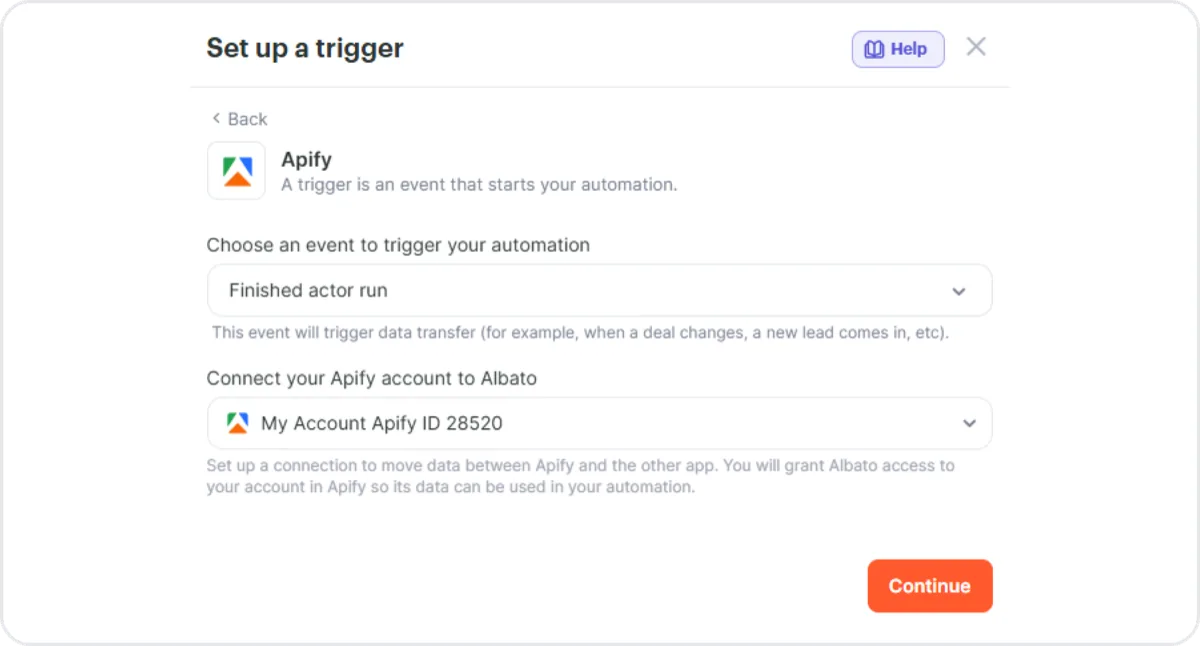
In Albato, click Create automation. Select Apify as the trigger app and choose the Finished Actor Run trigger. This fires every time a selected Actor completes a run. Select your Apify connection and pick the Actor you want to monitor.
Step 2: Add an action to retrieve the data
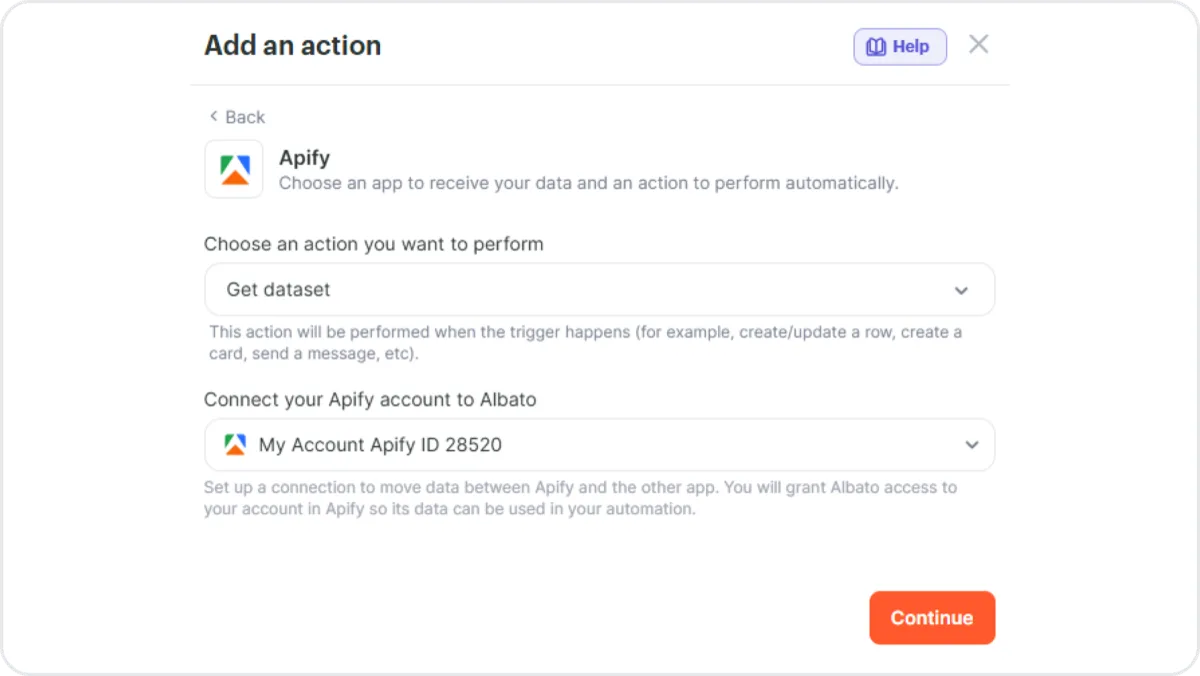
Click + to add the next step. Select Apify as the action app and choose the Get dataset action. Map the Run ID from the trigger output to fetch the correct dataset.
Step 3: Send the data to Google Sheets
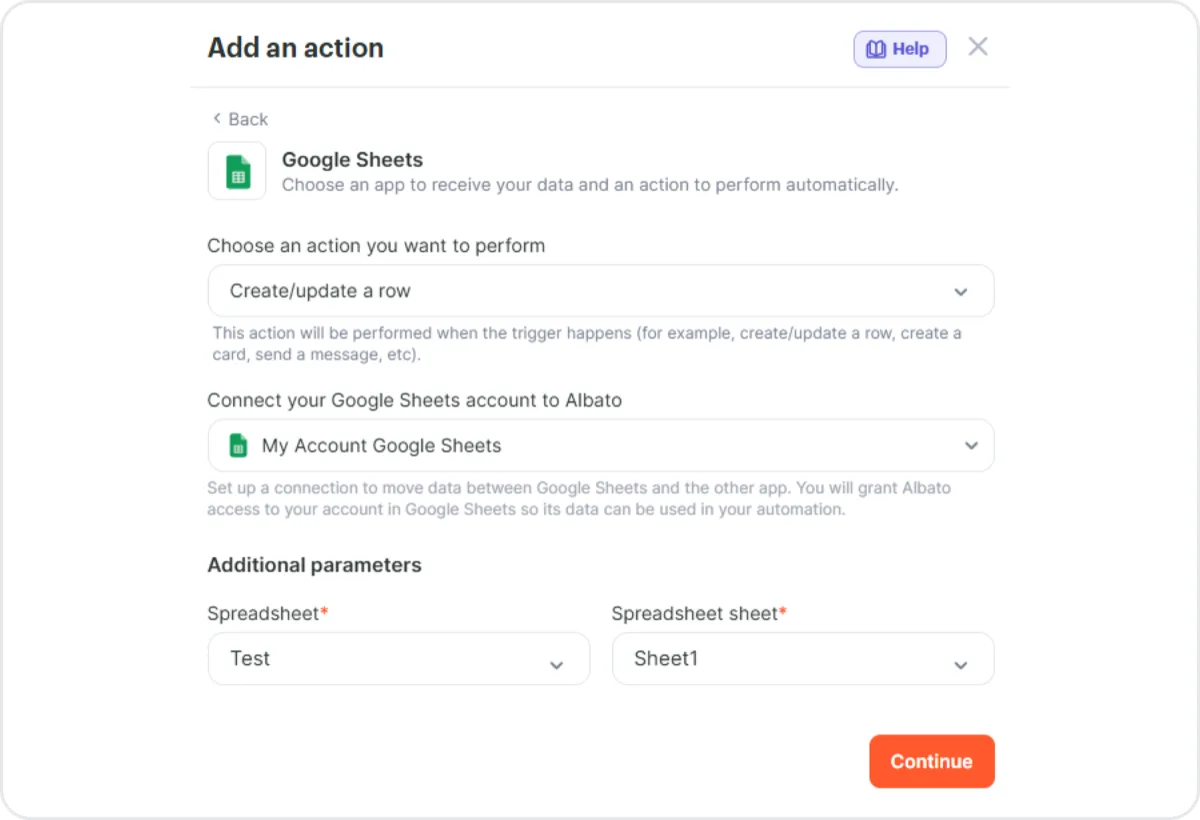
Click + to add another step. Select Google Sheets as the action app and choose the Create/update a row action. Select your spreadsheet and map the dataset fields to the corresponding columns. Click Save and turn on the automation.
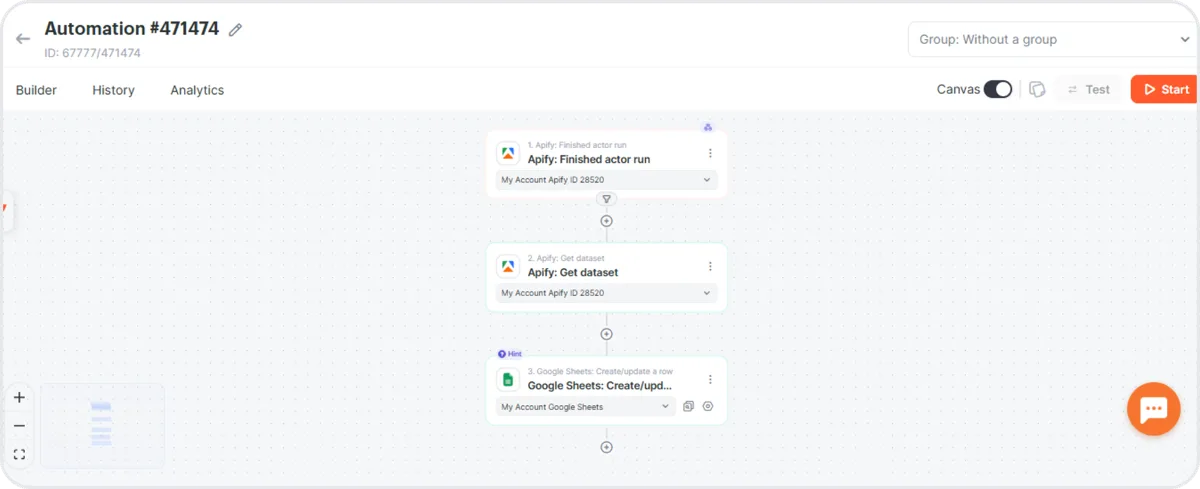
Every time the selected Actor finishes a run, Albato fetches the scraped data and adds it to your spreadsheet automatically.
Build a workflow with an Apify action
You can also start an Actor directly from an Albato workflow. This is useful when you want another event, such as a new CRM record or a form submission, to start a scraping job.
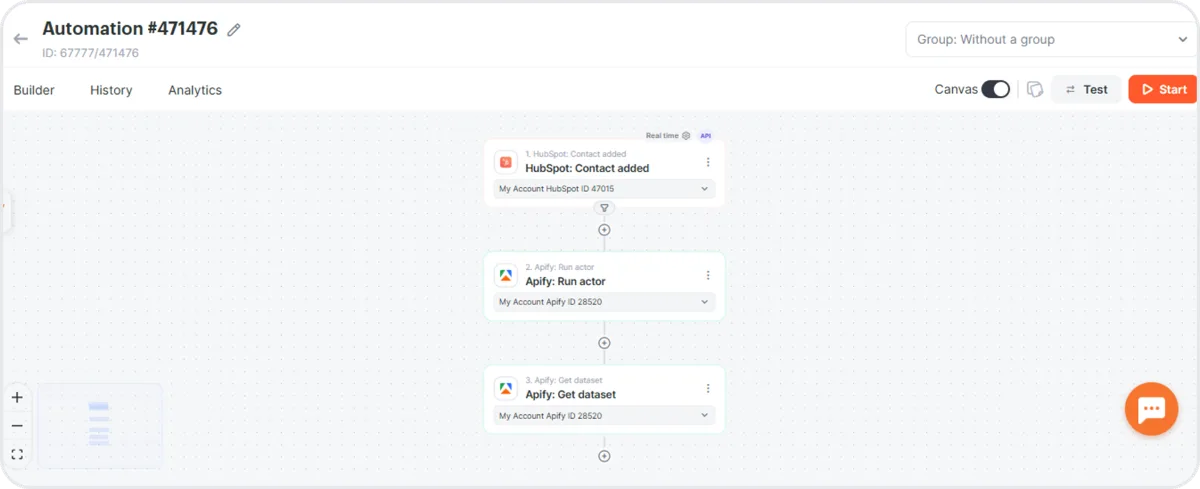
Create a new automation and choose any app as the trigger (for example, HubSpot > Contact added). Add Apify as the action app and select Run Actor. Pick the Actor you want to run and configure its input fields. Optionally, add a second Apify step with Get dataset to retrieve the results once the run completes.
Handling long-running Actors
Apify Actors often run for several minutes, which doesn't fit well into a single synchronous workflow step. For Actors that take longer than a few seconds to finish, use the asynchronous pattern: start the run with the Run Actor action, then build a separate automation that uses the Finished Actor Run trigger to continue processing once the run completes. This avoids blocking your workflow while the Actor is still running and is also more reliable for runs that exceed the platform's step timeout.
Triggers
| Name | Description |
|---|---|
| Finished Actor run | Triggers when a selected Actor run is finished. |
| Finished task run | Triggers when a selected Actor task run is finished. |
Actions
| Name | Description |
|---|---|
| Run Actor | Starts a selected Actor and returns immediately without waiting for the run to finish. To process the run output, pair this with the Finished Actor Run trigger or fetch results later with Last Actor run or Get dataset. See Handling long-running Actors. |
| Run task | Starts a selected Actor task and returns immediately without waiting for the run to finish. As with Run Actor, pair this with the Finished task run trigger to continue once the run completes. |
| Last Actor run | Retrieves data from the most recent Actor run. |
| Last task run | Retrieves data from the most recent Actor task run. |
| Find last Actor run | Finds the most recent Actor run. |
| Find last task run | Finds the most recent Actor task run. |
| Create Actor task | Creates a new Actor task configuration. |
| Get dataset | Retrieves items from a dataset. |
| Get key-value store record | Retrieves a value from a key-value store. |
| Get list of keys | Lists keys in a key-value store. |
| Custom API request | Sends a custom request to any Apify API endpoint. |
Troubleshooting
Connection fails with "invalid token"
Confirm that you copied the Personal API token from Settings > API & Integrations in Apify Console, not a different scoped token. Make sure no spaces or line breaks were added when pasting the token into Albato. If the connection still fails, generate a new token in Apify Console and recreate the connection.
Actor or task doesn't appear in the dropdown
Albato lists Actors and tasks tied to the connected Apify account. If a recently created Actor or task isn't showing up, refresh the connection and the action configuration. To use a public Actor from Apify Store, open it once in Apify Console so it's added to your account.
Workflow times out before the Actor finishes
The Run Actor and Run task actions return immediately after the run starts, but downstream steps that read the run output can time out if the Actor takes longer than Albato's step limit. Use the asynchronous pattern: start the run in one automation, then continue processing in a separate automation triggered by Finished Actor Run. See Handling long-running Actors.
Dataset is empty
The Get dataset action requires a valid Run ID and a run that finished successfully with output. Verify the run in Apify Console under Runs to confirm it completed and produced items before fetching the dataset.
Resources
If you have questions or need help, join the Apify developer community on Discord.