Actor runs and builds
An Actor is a combination of source code and various settings in a Docker container. To run, it must be built first.
Builds
An Actor build consists of the source code built as a Docker image, making the Actor ready to run on the Apify platform.
What is a Docker image?
A Docker image is a lightweight, standalone, executable package of software that includes everything needed to run an application: code, runtime, system tools, system libraries, and settings. For details, see Docker's website.
When running an Actor, you can choose what build to run by selecting a tag or number in the run options.
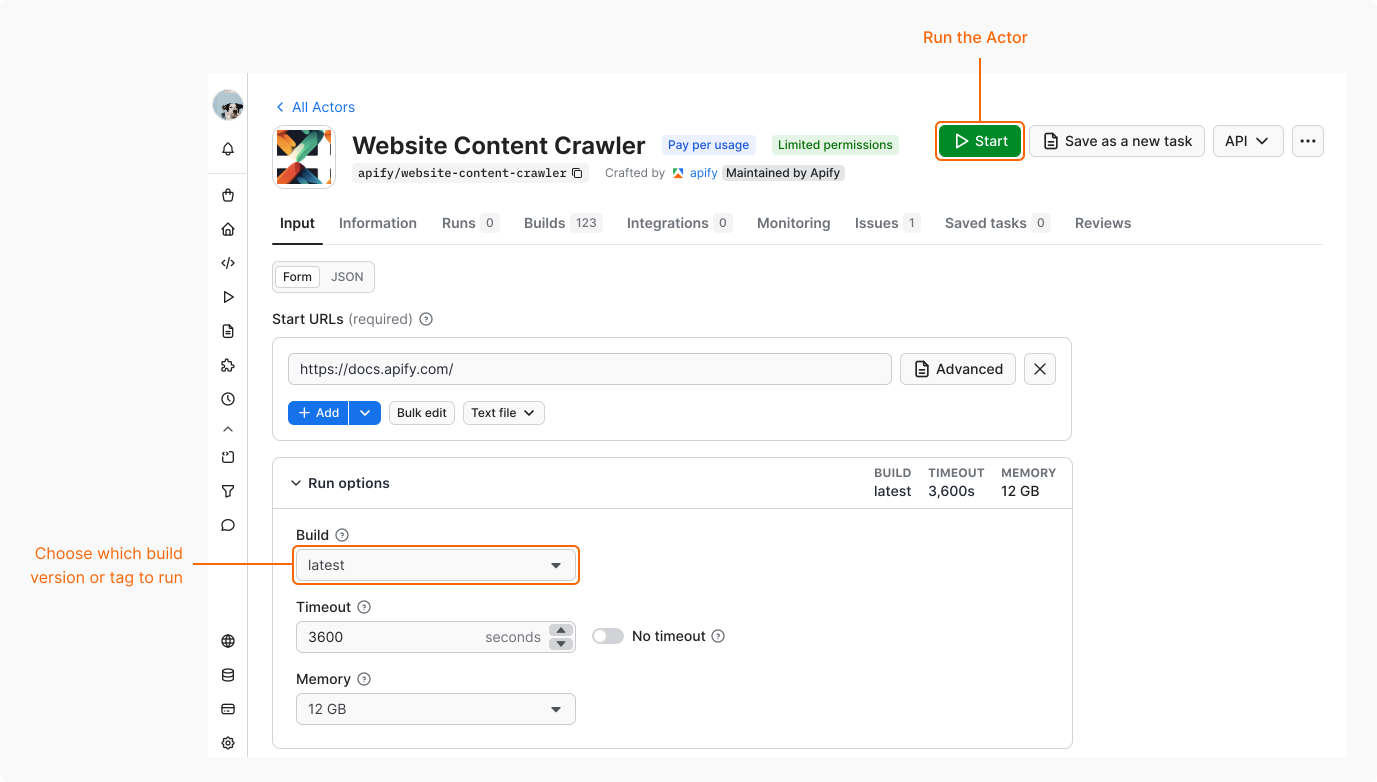
Build numbers
With every new version of an Actor, a new build is created. Each Actor build has its number. For example, 1.2.34.
Each build might have different features, input, or output. By fixing the build to an exact version, you make sure that you won't be affected by a breaking change in a new Actor version. However, you will lose updates.
Build tags
On top of the number, some builds are also tagged. For example, latest or beta.
Tags make it easier to specify which build to use when running an Actor. To reassign a tag to a different build, use the Update Actor API endpoint.
Runs
When you start an Actor, an Actor run is created. An Actor run is a Docker container created from the build's Docker image with dedicated resources, such as CPU, memory, and disk space. For details, see Usage and resources.
Each run has its own default storages assigned, which it might use:
- Key-value store containing the input and enabling Actor to store other files.
- Dataset enabling Actor to store the results.
- Request queue to maintain a queue of URLs to be processed.
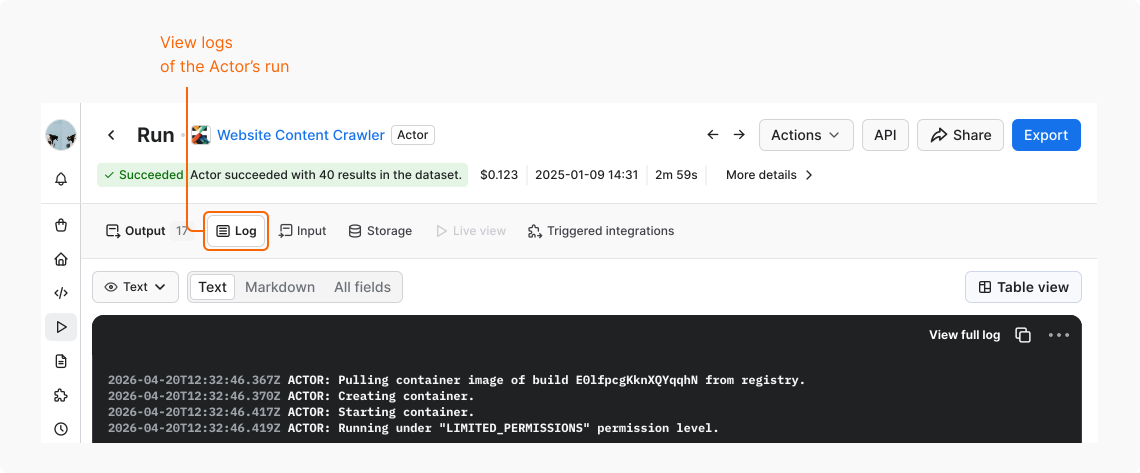
View run logs
To view what's happening while the Actor is running:
- In Apify Console, go to the Actor's page.
- In the Runs tab, select the run you want to inspect.
- Select the Log tab.
Origin
Both Actor runs and builds have the Origin field indicating how the Actor run or build was invoked, respectively. The origin is displayed in Apify Console and available via the Get Actor run endpoint in the meta.origin field.
| Name | Origin |
|---|---|
DEVELOPMENT | Manually from Apify Console in the Development mode (own Actor) |
WEB | Manually from Apify Console in "normal" mode (someone else's Actor or task) |
API | From Apify API |
CLI | From Apify CLI |
SCHEDULER | Using a schedule |
TEST | From the Actor's test page in Apify Console |
WEBHOOK | Using a webhook |
ACTOR | From another Actor run |
STANDBY | From Actor Standby |
CI | From a CI/CD pipeline (for example, GitHub Actions) |
MCP | From the Apify MCP Server |
Lifecycle
Each run and build starts with the initial status READY and goes through one or more transitional statuses to one of the terminal statuses.
While a run or build is still READY, it can also time out, or you can abort it.
| Status | Type | Description |
|---|---|---|
| READY | initial | Started but not allocated to any worker yet |
| RUNNING | transitional | Executing on a worker machine |
| SUCCEEDED | terminal | Finished successfully |
| FAILED | terminal | Run failed |
| TIMING-OUT | transitional | Timing out now |
| TIMED-OUT | terminal | Timed out |
| ABORTING | transitional | Run is being aborted |
| ABORTED | terminal | Run aborted |
Abort a run
You can abort runs with the statuses READY, RUNNING, or TIMING-OUT in two ways:
- Immediately (default). The Actor process is killed with no grace period.
- Gracefully. The Actor run receives a signal about aborting with the
abortingevent and is granted a 30-second window to finish in-progress tasks before getting terminated. If you plan to resurrect the run later, a graceful abort gives the Actor a chance to persist its state. When resurrected, the Actor can restart where it left off.
To abort a run, use the Abort button in Apify Console or the Abort Actor run API endpoint.
Resurrect a finished run
Any Actor run in a terminal state, i.e., run with status SUCCEEDED, FAILED, ABORTED, and TIMED-OUT, might be resurrected back to a RUNNING state. This is helpful in many cases, for example, when the timeout for an Actor run was too low or in case of an unexpected error.
The whole process of resurrection looks as follows:
- Run status will be updated to RUNNING, and its container will be restarted with the same storage (the same behavior as when the run gets migrated to the new server).
- Updated duration will not include the time when the Actor was not running.
- Timeout will be counted from the point when this Actor run was resurrected.
Resurrection can be performed in Apify Console using Actions > Resurrect or via API using the Resurrect Actor run API endpoint.
You can also adjust timeout and memory or change Actor build before the resurrection. This is especially helpful in case of an error in the Actor's source code as it enables you to:
- Abort a broken run
- Update the Actor's code and build the new version
- Resurrect the run using the new build
Resurrect a run that reached its cost limit
A run stops when its cost reaches Maximum cost per run. To continue the run, resurrect it with a higher limit.
The limit applies to the whole run, including the cost before the resurrection. If you don't change the limit, the resurrected run keeps the original limit. The run then stops right after it starts.
If the run has no limit set, the usage left on your account limits the run instead. The resurrected run continues from where it stopped only if the Actor saved its state to storage.
To continue the run:
- If your account has no usage left, increase your usage limit or upgrade your subscription.
- In Apify Console, open the run.
- Select Actions > Resurrect.
- In the Restart run dialog, on the Resurrect tab, expand Options.
- If the run has a limit, enter a higher value in Maximum cost per run, or turn on No maximum limit.
- Select Resurrect.
To do the same with the API, pass maxTotalChargeUsd to the Resurrect Actor run endpoint.
Data retention
Apify securely stores your ten most recent runs indefinitely, ensuring your records are always accessible. All Actor runs beyond the latest ten are deleted along with their default storages (Key-value store, Dataset, Request queue) after the data retention period based on your subscription plan.
Actor builds are deleted only when they are not tagged and have not been used for over 90 days.
Share
Share your Actor runs with other Apify users via the access rights system.