Object input type
Object fields hold a nested value. The editor decides whether users see a proxy picker, a JSON editor, or one input per sub-property, and an optional sub-schema validates the sub-properties.
Example of proxy configuration:
{
    "title": "Proxy configuration",
    "type": "object",
    "description": "Select proxies to be used by your crawler.",
    "prefill": { "useApifyProxy": true },
    "editor": "proxy"
}
Rendered input:
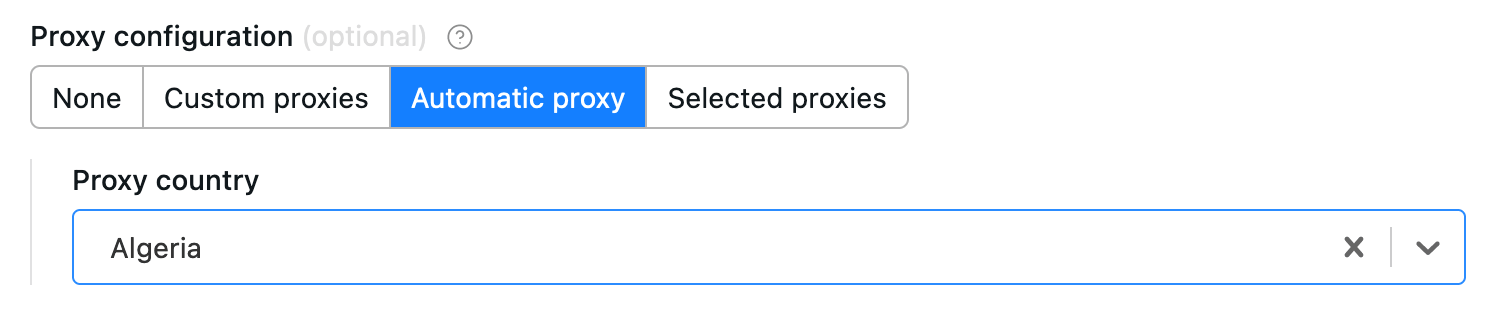
The object where the proxy configuration is stored has the following structure:
{
    // Indicates whether Apify Proxy was selected.
    "useApifyProxy": Boolean,

    // Array of Apify Proxy groups. Is missing or null if
    // Apify Proxy's automatic mode was selected
    // or if proxies are not used.
    "apifyProxyGroups": String[],

    // Array of custom proxy URLs.
    // Is missing or null if custom proxies were not used.
    "proxyUrls": String[],
}
Example of a black box object:
{
    "title": "User object",
    "type": "object",
    "description": "Enter object representing user",
    "prefill": {
        "name": "John Doe",
        "email": "janedoe@gmail.com"
    },
    "editor": "json"
}
Rendered input:

Properties:
| Property | Value | Required | Description |
|---|---|---|---|
editor | One of
| Yes | UI editor used for input. |
maxProperties | Integer | No | Maximum number of properties the object can have. |
minProperties | Integer | No | Minimum number of properties the object can have. |
nullable | Boolean | No | Specifies whether null is an allowed value. |
isSecret | Boolean | No | Specifies whether the input field will be stored encrypted. Only available with json and hidden editors. |
properties | Object | No | Defines the sub-schema properties for the object used for validation and UI rendering (schemaBased editor). See more info below. |
additionalProperties | Boolean | No | Controls if sub-properties not listed in properties are allowed. Defaults to true. Set to false to make requests with extra properties fail. |
required | String array | No | An array of sub-properties keys that are required. Note: This applies only if the object field itself is present. If the object field is optional and not included in the input, its required subfields are not validated. |
Object fields validation
Like root-level input schemas, you can define a schema for sub-properties of an object using the properties field.
Each sub-property within this sub-schema can define the same fields as those available at the root level of the input schema, except for the fields that apply only at the root level: sectionCaption and sectionDescription.
Validation is performed both in the UI and during Actor execution via the API. Sub-schema validation works independently of the editor selected for the parent object. It also respects the additionalProperties and required fields, giving you precise control over whether properties not defined in properties are permitted and which properties are mandatory.
Object sub-properties can define their own sub-schemas recursively with no nesting depth limit.
{
    "title": "Configuration",
    "type": "object",
    "description": "Advanced configuration options",
    "editor": "json",
    "properties": {
        "locale": {
            "title": "Locale",
            "type": "string",
            "description": "Locale identifier.",
            "pattern": "^[a-z]{2,3}-[A-Z]{2}$"
        },
        "timeout": {
            "title": "Timeout",
            "type": "integer",
            "description": "Request timeout in seconds",
            "minimum": 1,
            "maximum": 300
        },
        "debugMode": {
            "title": "Debug Mode",
            "type": "boolean",
            "description": "Enable verbose logging during scraping"
        }
    },
    "required": ["locale", "timeout"],
    "additionalProperties": false
}
Rendered input:
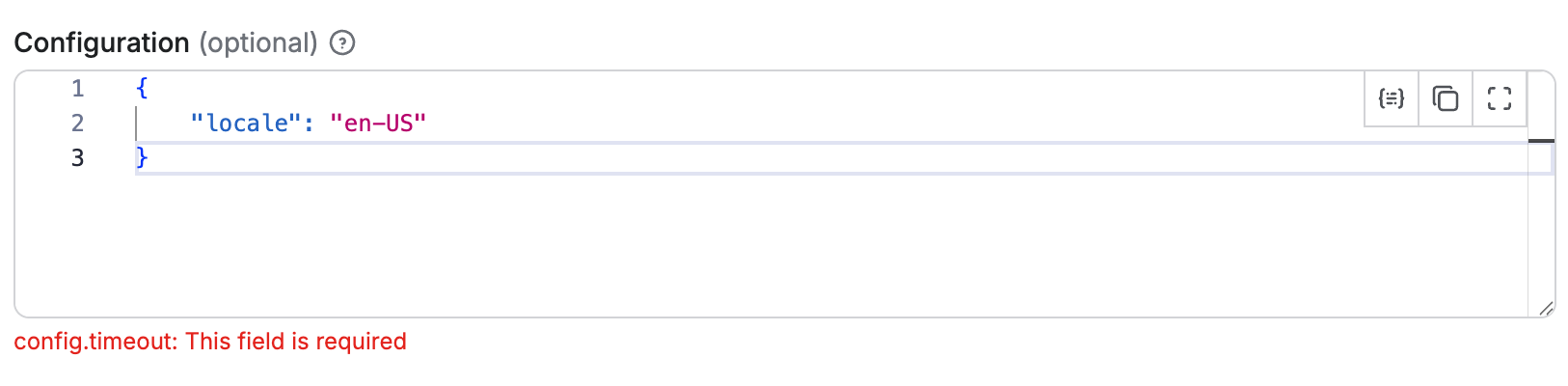
In this example, the object has validation rules for its properties:
- The
timeoutproperty must be an integer between 1 and 300 - The
localeproperty must be a string matching the pattern^[a-z]{2,3}-[A-Z]{2}$ - The
debugModeproperty is optional and can be eithertrueorfalse - The
timeoutandlocaleproperties are required - No additional properties beyond those defined are allowed
Handling default and prefill values for object sub-properties
When defining object with sub-properties, it's possible to set default and prefill values in two ways:
- At the parent object level: You can provide a complete object as the
defaultorprefillvalue, which will set values for all sub-properties at once. - At the individual sub-property level: You can specify
defaultorprefillvalues for each sub-property separately within thepropertiesdefinition.
When both methods are used, the values defined at the parent object level take precedence over those defined at the sub-property level. For example, in the input schema like this:
{
    "title": "Configuration",
    "type": "object",
    "description": "Advanced configuration options",
    "editor": "schemaBased",
    "default": {
        "timeout": 60
    },
    "properties": {
        "locale": {
            "title": "Locale",
            "type": "string",
            "description": "Locale identifier.",
            "pattern": "^[a-z]{2,3}-[A-Z]{2}$",
            "editor": "textfield",
            "default": "en-US"
        },
        "timeout": {
            "title": "Timeout",
            "type": "integer",
            "description": "Request timeout in seconds",
            "minimum": 1,
            "maximum": 300,
            "editor": "number",
            "default": 120
        }
    }
}
The timeout sub-property will have a default value of 60 (from the parent object), while the locale sub-property will have a default value of "en-US" (from its own definition).
Schema-based editor
Object with sub-schema defined can use the schemaBased editor, which provides a user-friendly interface for editing each property individually.
It renders all properties based on their type (and editor field), providing a user-friendly interface for complex objects.
This feature works for objects (and arrays of objects), enabling each property to have its own input field in the UI.
Objects with a defined sub-schema can use the schemaBased editor, which provides a user-friendly interface for editing each property individually.
It renders all properties based on their type (and optionally the editor field), making it ideal for visually managing complex object structures.
This editor supports both single objects and arrays of objects (see Array), allowing each property to be represented with an appropriate input field in the UI.
{
    "title": "Configuration",
    "type": "object",
    "description": "Advanced configuration options",
    "editor": "schemaBased",
    "properties": {
        "locale": {
            "title": "Locale",
            "type": "string",
            "description": "Locale identifier.",
            "pattern": "^[a-z]{2,3}-[A-Z]{2}$",
            "editor": "textfield"
        },
        "timeout": {
            "title": "Timeout",
            "type": "integer",
            "description": "Request timeout in seconds",
            "minimum": 1,
            "maximum": 300,
            "editor": "number"
        },
        "debugMode": {
            "title": "Debug Mode",
            "type": "boolean",
            "description": "Enable verbose logging during scraping",
            "editor": "checkbox"
        }
    },
    "required": ["locale", "timeout"],
    "additionalProperties": false
}
Rendered input:
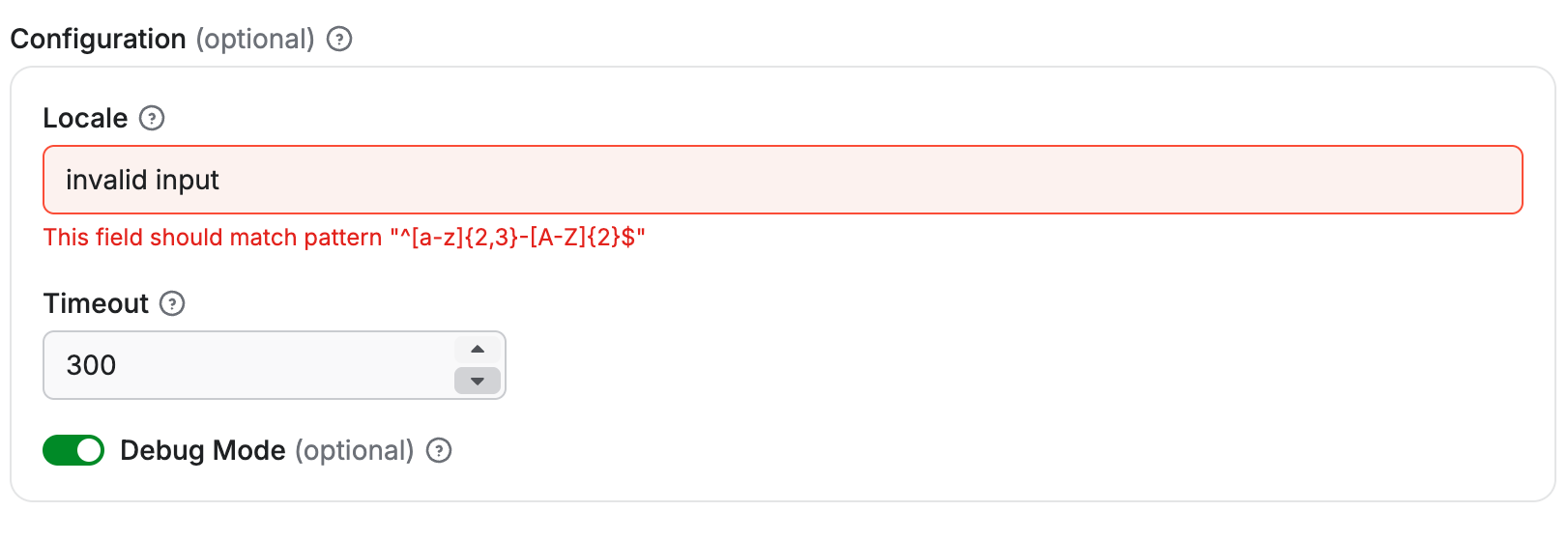
Each sub-property is rendered with its own input field according to its type and editor configuration:
- The
localeproperty is rendered as a text field. - The
timeoutproperty is rendered as a numeric input with validation limits. - The
debugModeproperty is rendered as a checkbox toggle.
Limitations
The schemaBased editor supports only top-level sub-properties (level 1 nesting).
While deeper nested properties can still define sub-schemas for validation, they cannot use the schemaBased editor for rendering.
For example, if the Configuration object above included a property that was itself an object with its own sub-properties, those deeper levels would need to use a different editor, such as json.